Production Prep, Ingest Assets, and Metadata Management
The execution of a professional multi-camera video podcast demands systematic preparation during the pre-production and production phases to prevent catastrophic errors during post-production1. This foundation begins with structured file management1. Experienced post-production teams establish a standardized project folder template, partitioning raw assets into dedicated subdirectories1. Utilizing highly disciplined file-naming protocols segmenting files by camera angle, date, and project episode protects the integrity of the media pipeline1. Standardizing all recording devices to an identical audio sample rate, specifically the broadcast-standard of 
To bridge the gap between production and the edit suite, camera operators and sound recordists must employ strict visual and auditory slating procedures4. In professional multi-camera environments, synchronization relies heavily on physical slates or synchronized electronic timecode generators4. However, situations often arise where certain cameras cannot be dynamically grouped or positioned to capture the master slate4.
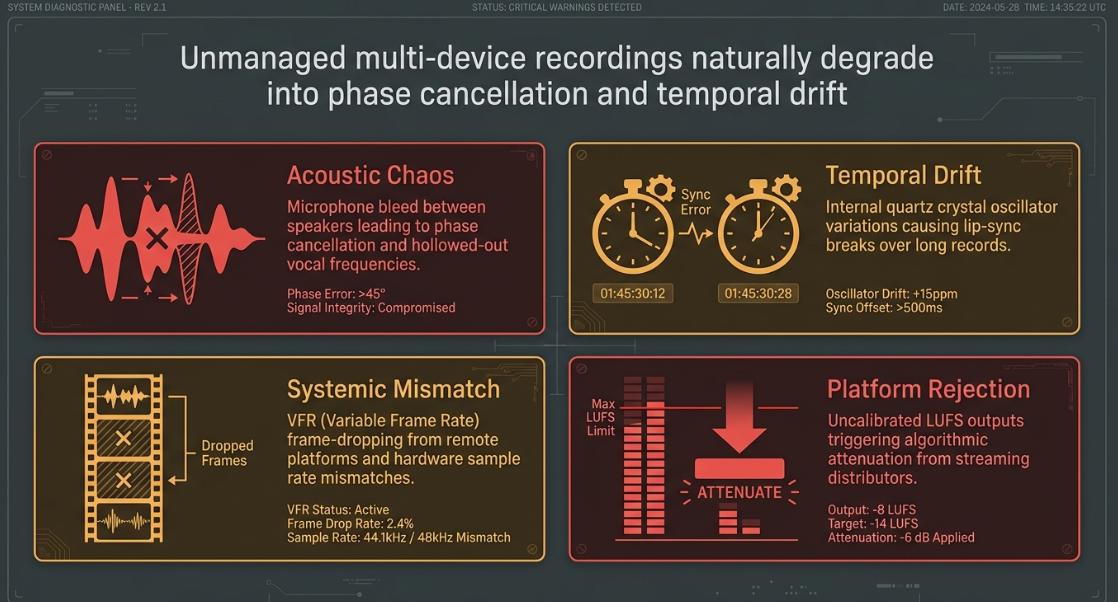
To secure synchronization redundancy, production teams must deploy the "common sticks" slating protocol4. This method establishes a clear, audible, and visual marker for cameras that can see the primary slate, followed by a separate slate positioning and vocal identification for outlying camera tracks4. The sound mixer voices these take details clearly, ensuring that if digital timecode synchronization fails in post-production, the editor retains physical reference markers to align the assets4.
Once assets are delivered to post-production, the ingest process varies depending on the non-linear editing system (NLE)1. Inside DaVinci Resolve, editors can build a multicam sequence manually or automatically7. The manual method mimics legacy workflows where footage is placed onto separate tracks on a timeline, highlighted, and aligned using the "Auto Align Clips" tool based on waveform or timecode metadata7.
The more efficient, automated method leverages Resolve's metadata-driven engine7. By highlighting all footage from a specific camera angle in the Media Pool, opening the Metadata Panel, and defining the camera under the "Angle" attribute, the editor builds an intelligent structure7. During the automated multicam creation process, checking the "Detect clips from the same camera" option directs Resolve to place multiple disjointed clips from a single camera onto an individual video track rather than spawning a new track for every file, keeping the timeline clean7.
In Adobe Premiere Pro, timeline generated sequences do not default to a zero timestamp; instead, they start at the exact timecode of the first clip in the sequence8. To preserve temporal alignment across an collaborative pipeline, editors can modify this start time by navigating to the timeline panel, selecting the three-bar menu, and manually altering the "Start Time" parameters8.
When sharing these synchronized timelines with assistant editors or sound designers, project files should be kept compact to minimize asset clutter8. By selecting the targeted sequence in the project bin and navigating to "File > Export Selection as Premiere Pro Project," editors can generate a self-contained project file containing only the synced sequence and its parent media clips8.
Audio Signal Architecture and Acoustic Conditioning
Professional podcast post-production requires isolated, clean, and intelligible vocal tracks9. Achieving this level of audio fidelity requires addressing hardware limitations and acoustic constraints on set9. A common bottleneck in entry-level podcasting is the use of multiple USB microphones connected to a single host computer9. Standard operating systems are designed to recognize only one USB audio device at a time, often routing multiple microphones to a single unified channel and causing severe signal bleed9.
To overcome this, production teams must transition to professional XLR microphones routed through multi-channel audio interfaces or podcast consoles (such as the Zoom PodTrak P4 or RODECaster Pro II)9. If USB microphones must be used, they must be routed through separate physical laptops, or aggregated through software-level virtual mixers like Voicemeeter or low-latency ASIO4ALL drivers to route each microphone to a discrete, isolated track in a digital audio workstation (DAW)9.
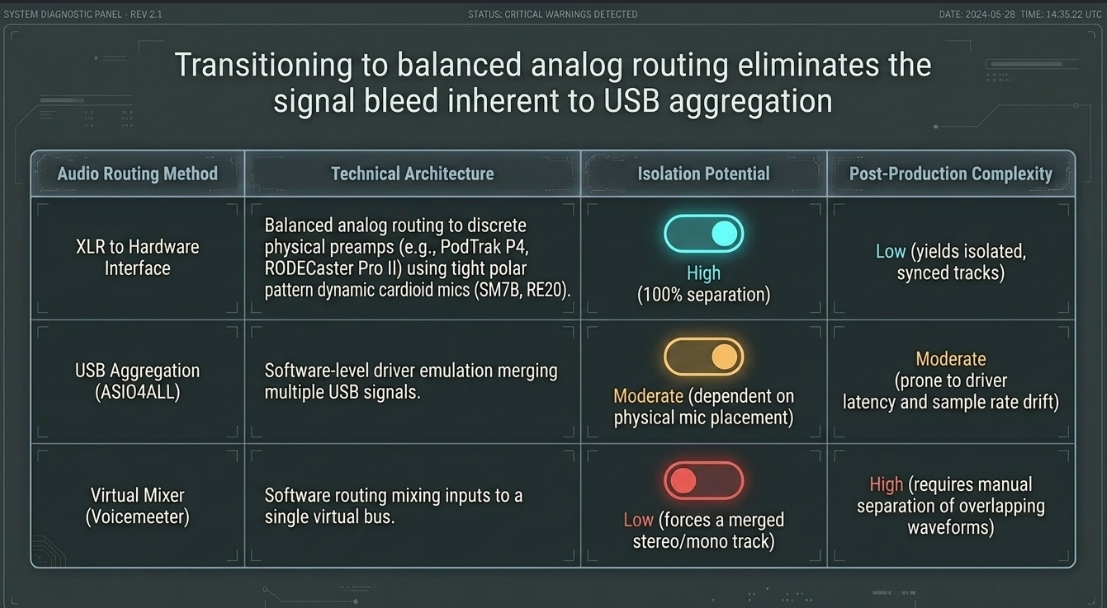
Even with high-end XLR hardware, microphone bleed—where Speaker A's voice is captured by Speaker B's microphone—can degrade the mix9. This crosstalk introduces phase cancellation, which hollows out the vocal frequencies and thins the sound10. To prevent this, production environments must deploy dynamic cardioid microphones (such as the Shure SM7B, Electro-Voice RE20, or Rode PodMic)10. These microphones feature a tight polar pattern that rejects off-axis sound, isolating each speaker's voice10.

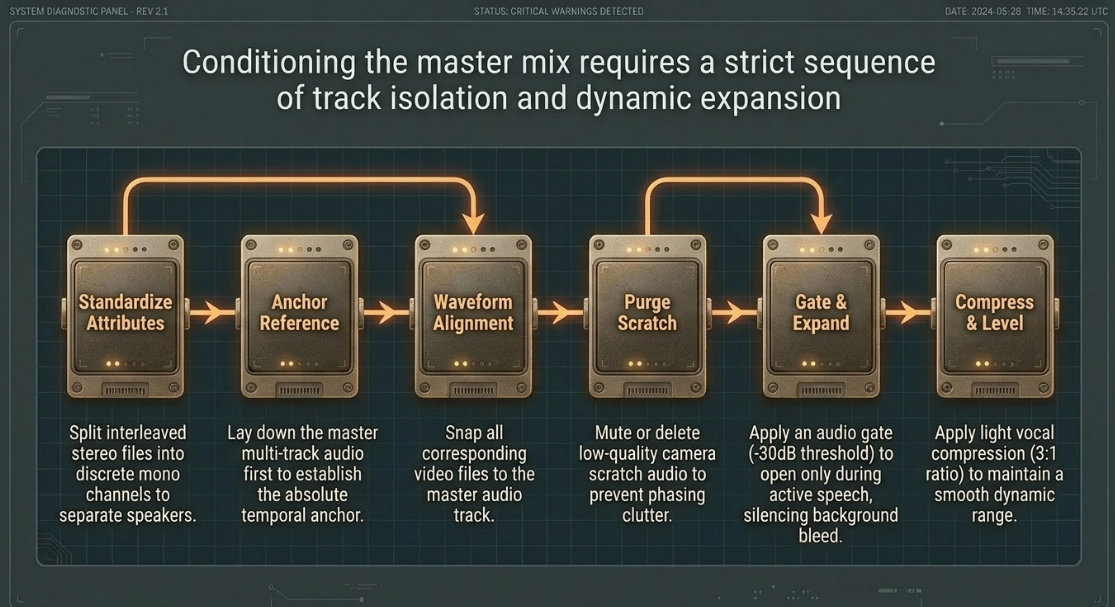
Once multi-track audio is brought into the NLE, editors must execute a precise "Master Mix" layout workflow to condition the signals13:
Clip Attribute Standardization: Interleaved stereo files must be split into discrete mono channels within the NLE clip attributes7. This separates each speaker onto their own track7.
Master Reference Placement: Lay down the master multi-track audio recording onto the timeline first, establishing it as the absolute temporal anchor13.
Multi-Camera Waveform Alignment: Align all video files to this master audio track using waveform synchronization1.
Scratch Audio Purging: Mute or delete all low-quality camera scratch audio tracks to prevent phasing and clutter13.
Dynamic Expansion and Gating: Apply an audio gate or expander to each isolated vocal track14. Set the gate threshold (typically around

Vocal Compression and Level Leveling: Apply light compression (using a

Mathematical Dynamics of Timecode, Drift, and Clock Discrepancies
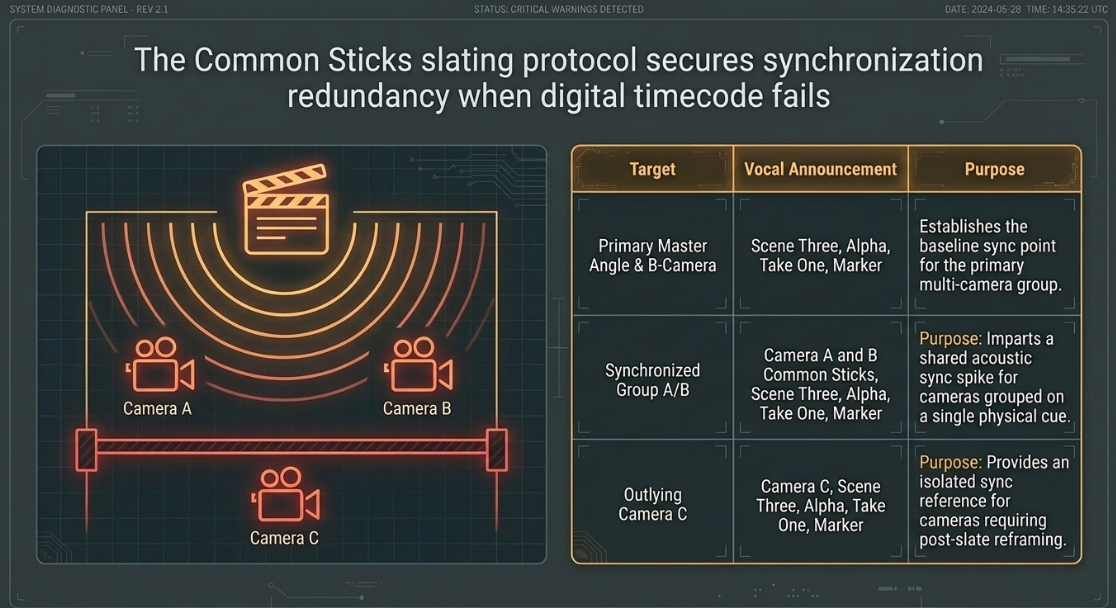
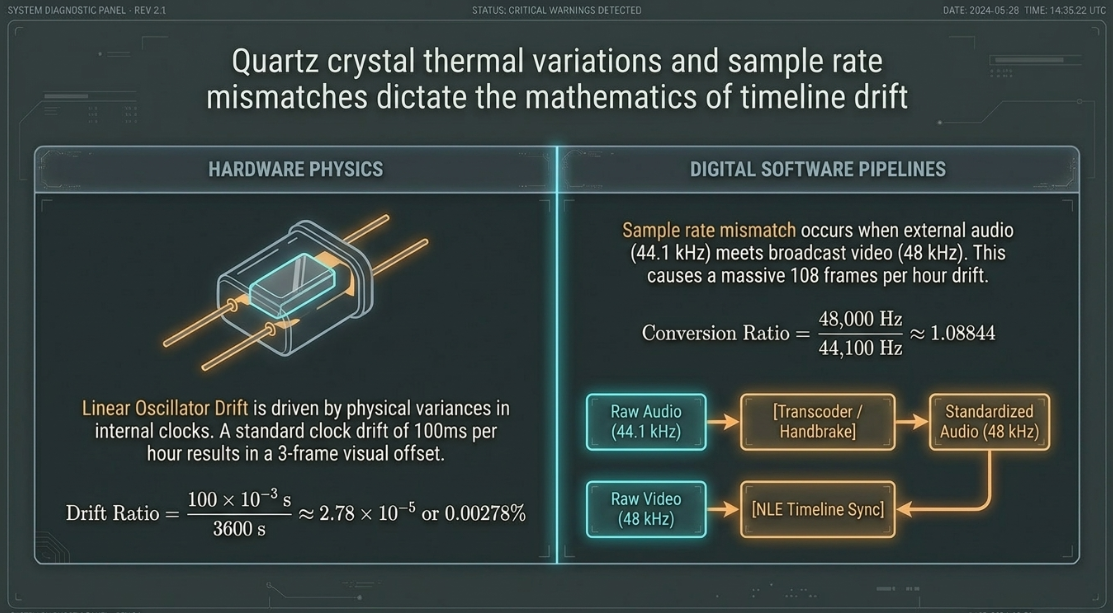
A fundamental challenge in multi-device recording is the drift that occurs when devices run on their own internal clocks15. Each digital camera and audio recorder relies on an internal quartz crystal oscillator to regulate its timing15. These oscillators are highly sensitive to temperature variations and manufacturing tolerances, resulting in minor frequency variations15.
A standard clock drift rate of 

While mathematically small, this drift results in a 3-frame visual offset over an hour-long recording15. This displacement breaks lip-sync and disorients viewers10.
This issue is worsened by sample rate mismatches3. Recording external audio at 


The speed mismatch ratio between these two sampling rates is:

This conversion factor can cause a drift of approximately 


Raw Audio (44.1 kHz) ===> [ Transcoder / Handbrake ] ===> Standardized Audio (48 kHz)
|
[ NLE Timeline Sync ]
^
Raw Video (48 kHz Interleaved) ===================================|
A third drift source is the Variable Frame Rate (VFR) files generated by screen capture software and remote guest platforms (such as Zoom, Riverside, or Zencastr)3. To maintain system stability during CPU spikes, these platforms drop video frames while keeping the audio recording at a constant speed3. This creates a non-linear drift3. To fix this, editors must transcode VFR files into Constant Frame Rate (CFR) files using conversion software like HandBrake before importing them into professional editing applications3.




To decode linear timecode (LTC) recorded onto an audio track, Resolve and Premiere Pro offer built-in conversion features7. In Resolve, the "Update Timecode from Audio Track" feature calculates and overrides the clip's metadata timecode7. While efficient, this process permanently overwrites the original camera metadata timecode20. If the post-production workflow requires a round-trip conform to color grading systems like Baselight, this metadata loss breaks the link to the camera original files20. Editors must instead create a multicam source sequence using LTC as the synchronization point, which preserves the underlying source metadata20.
Adobe Premiere Pro faces a separate issue with standalone WAV files containing LTC19. Because WAV files lack an embedded video track, Premiere Pro cannot determine the correct frame rate reference for the audio19. The software defaults to an assumed 


Editorial Grammar and Cutting Choreography
The visual structure of a professional podcast sequence must prioritize the natural rhythm of dialogue1. In the early post-production phases, editors often adopt a "dialogue-first" editing approach, focusing entirely on shaping the vocal flow, trimming filler words, and removing pauses21. Only after the verbal narrative is locked does the editor begin cutting between camera angles21.
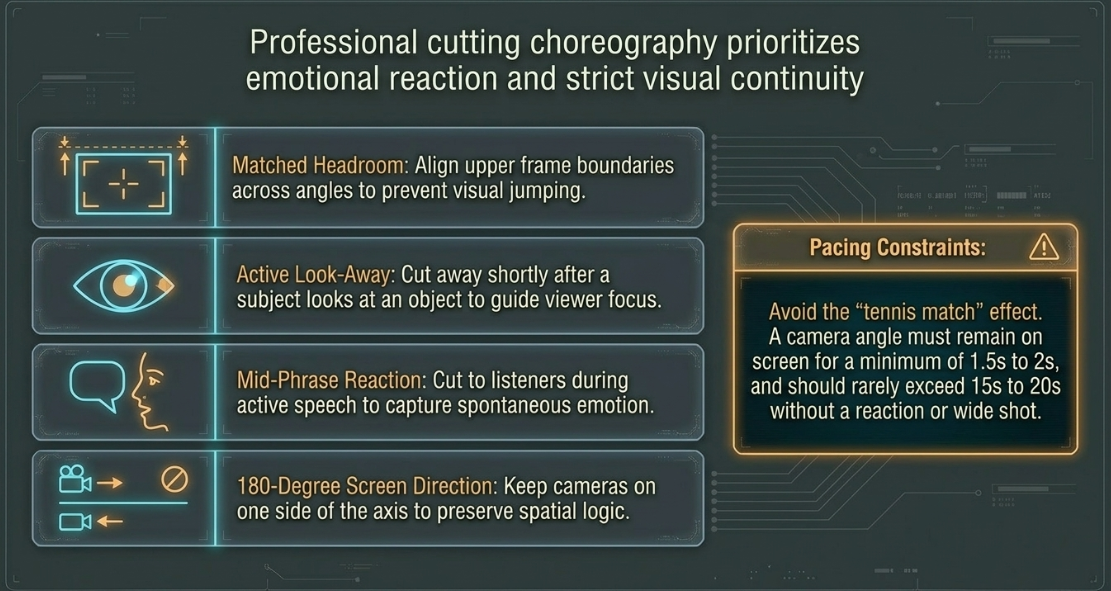
Once the dialogue cut is finalized, the editor refines the sequence by applying strict visual continuity and compositional rules1. According to standard editing grammar, cuts should be motivated by the emotional flow of the conversation1.
To maintain a natural pacing, editors must avoid the visual "tennis match" effect, where the camera cuts back and forth instantly with every spoken word23. Instead, they apply specific minimum and maximum shot durations25. A camera angle should typically remain on screen for at least 



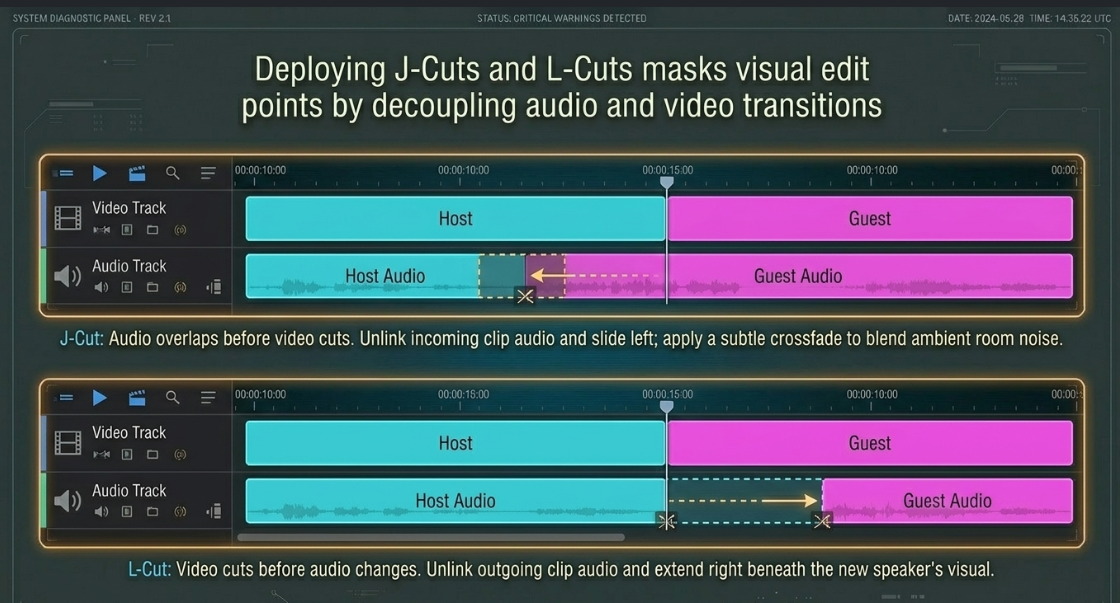
To make these camera cuts feel seamless, editors rely heavily on split edits, specifically J-cuts and L-cuts24. A split edit occurs when the audio and video edit points are offset, preventing simultaneous hard cuts that draw attention to the edit24.
J-Cut Timeline Layout:
Video Track: [ Video Scene A (Host) ] [ Video Scene B (Guest) ]
Audio Track: [ Audio Scene A ] [ Audio Scene B (Incoming) ]
^ Audio overlaps before video cuts [cite: 24, 27]
L-Cut Timeline Layout:
Video Track: [ Video Scene A (Host) ] [ Video Scene B (Guest) ]
Audio Track: [ Audio Scene A (Outgoing) ] [ Audio Scene B ]
^ Video cuts before audio changes [cite: 24, 27]
To construct a J-cut manually on the timeline:
Place the host's clip (Clip A) directly before the guest's clip (Clip B) with their linked audio tracks below27.
Cut the left-hand visual boundary of Clip B's video to shift its start point forward27.
Unlink the audio of Clip B and slide its starting point to the left, allowing it to play beneath the ending visual of Clip A27.
Apply a subtle crossfade on the audio transition to blend the ambient background noise of the two rooms27.
To construct an L-cut manually:
Place Clip A and Clip B in chronological order on the timeline27.
Cut the right-hand visual boundary of Clip A's video to transition to Clip B's video early27.
Unlink the audio of Clip A and extend its right-hand boundary to play beneath the beginning visual of Clip B27.
Apply an audio crossfade to smooth the transition where the outgoing audio fades out beneath the new speaker's visual27.
AI-Driven Multicamera Automation and Virtual Layout Dynamics
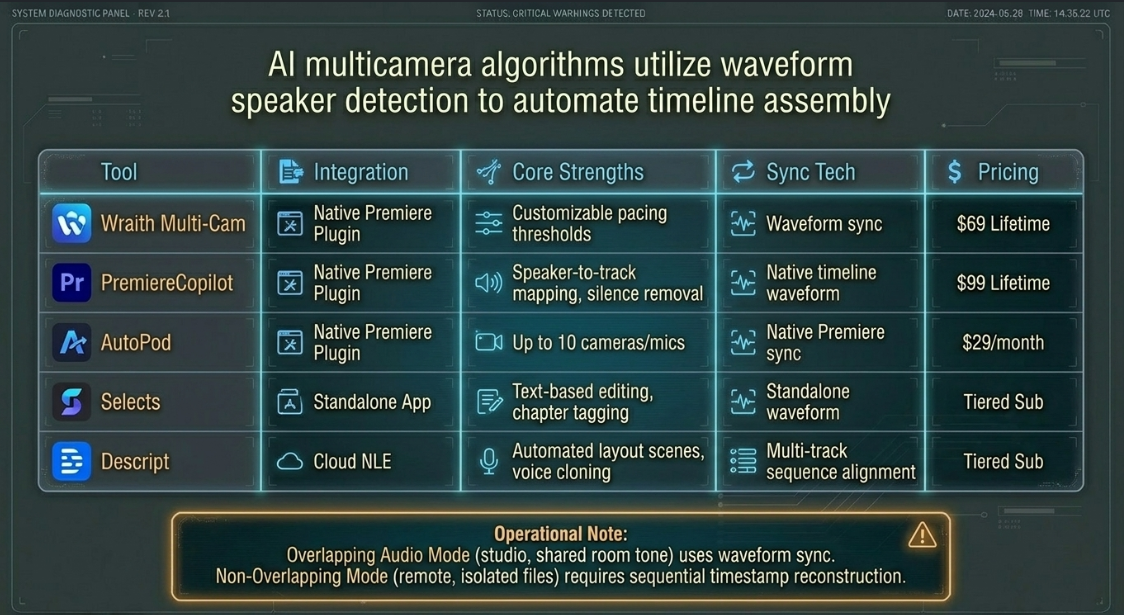
The post-production timeline can be streamlined using AI-driven multicamera automation tools2. These applications run on active speaker detection algorithms, analyzing audio waveforms to identify who is speaking and automatically cut to the corresponding camera angle2.


These automated tools process sync setups based on two distinct audio workflows34:
Overlapping Audio Mode: Designed for traditional in-studio podcasts where all cameras and microphones capture a live, simultaneous conversation34. The AI uses waveform-based synchronization to align all tracks and camera angles, then applies cuts to the timeline based on active speaker detection34.
Non-Overlapping Audio Mode: Tailored for remote interviews (recorded via Zoom or Riverside) where speakers are recorded on isolated, uncorrelated files without a shared room tone34. The AI analyzes individual file timestamps to reconstruct the timeline sequentially, ensuring the remote host and guest segments are aligned in a logical conversation flow34.
Using these tools saves hours of repetitive editing, but automated systems can occasionally make errors or produce jumpy edits33. For example, when applying Descript's Automatic Multicam to a timeline containing multiple non-overlapping clips, the software can fail to find active video on certain tracks, resulting in blank scenes33.
To resolve this issue, editors must process each sequence within its own isolated composition first, then copy and paste the processed sequences into a master blended composition33.
Sequence A Ingest ===> [ Process in Descript Composition A ] ===+
|
Sequence B Ingest ===> [ Process in Descript Composition B ] ===+===> [ Copy-Paste to Master Timeline ]
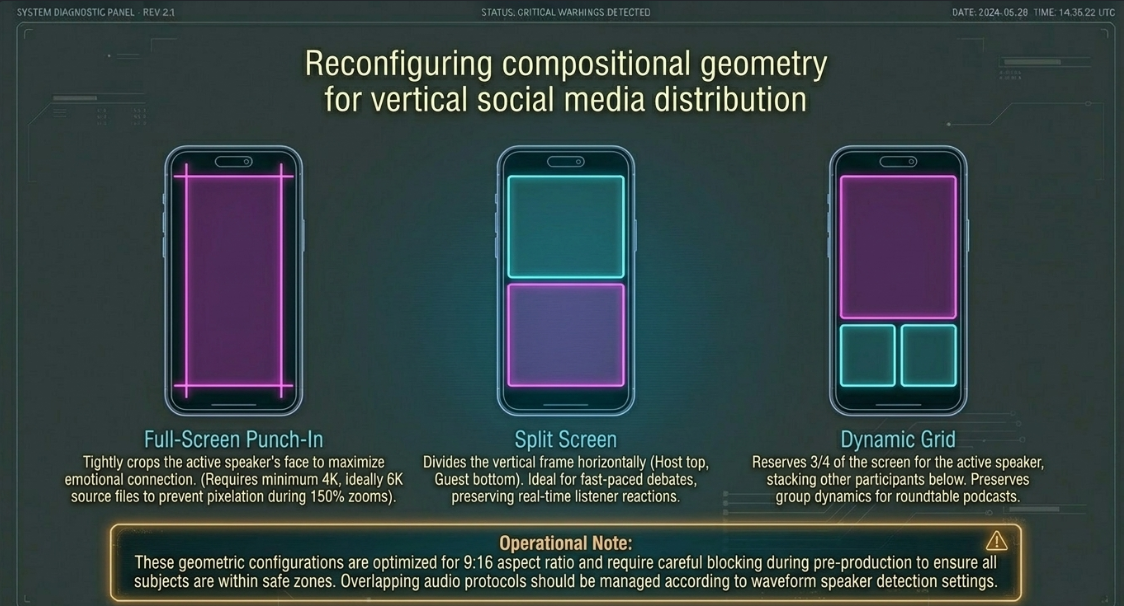
When formatting video for social platforms like TikTok or YouTube Shorts, automated reframing applications (such as Joyspace) use visual facial recognition to track speakers within a vertical 
Full-Screen Cut (Punch-In): Crops the frame tightly on the active speaker's face to maximize emotional connection during monologue-driven stories23. This style requires high-resolution source files (minimum


Split Screen: Splits the vertical frame into two halves, displaying the host in the top half and the guest in the bottom23. This layout is ideal for fast-paced debates, as it allows viewers to see the listener's immediate reaction in real time23.
Dynamic Grid: Reserves

Mastering Compliance, Bitrates, and Platform Delivery Standards
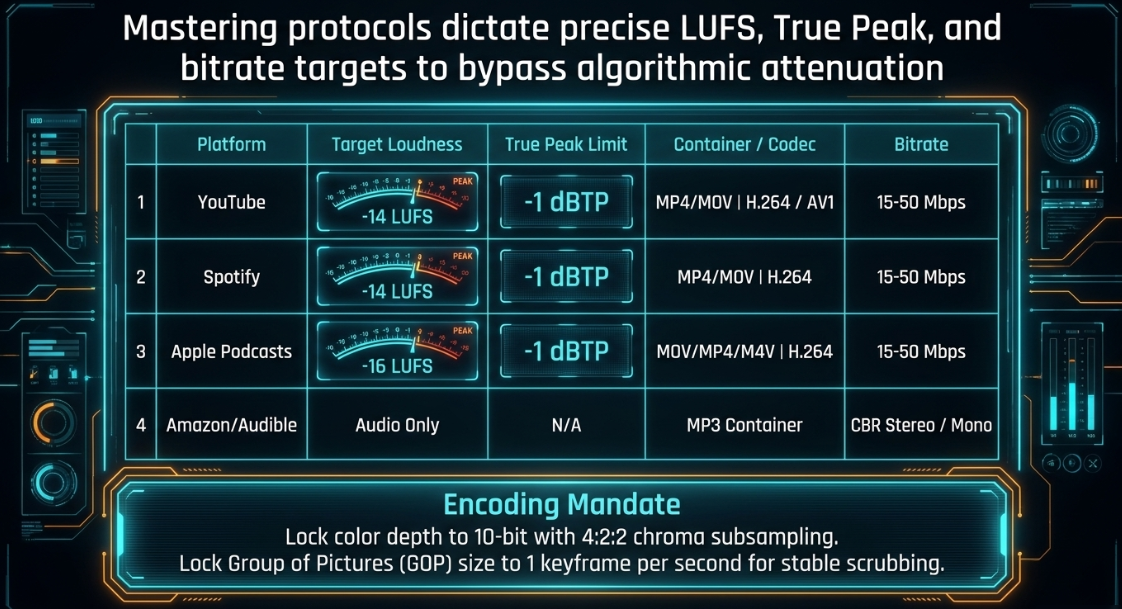
The final phase of the video podcast workflow is exporting and mastering the file to meet the technical standards of distribution networks1. Editors must manage platform-specific loudness targets and video compression parameters to ensure consistent playback across directories12.
Loudness is measured in Loudness Units relative to Full Scale (LUFS), which evaluates the average perceived loudness over the entire file37. If a file is uploaded with excessive volume, platform compression engines automatically apply downward attenuation37. However, if a file is uploaded at too quiet a level (e.g., 
To monitor these levels, editors must deploy professional metering software (such as iZotope Insight 2 or the free Youlean Loudness Meter) to ensure compliance with the target loudness and True Peak limits11.


















For high-fidelity video delivery, files must be encoded utilizing the H.264 High Profile or H.265 (HEVC) codecs with an 


Additionally, the Group of Pictures (GOP) size (the keyframe interval) should be locked to approximately one keyframe per second35. This frequency ensures stable, stutter-free scrubbing and instant response when viewers skip forward or backward on streaming timelines35.
When formatting video for social platforms, editors must adapt the widescreen layout to vertical 



To optimize the workflow, editors should place markers on the master timeline during the editing phase to flag key soundbites, brand mentions, and highly emotional moments1. These highlight markers allow assistants or AI clippers to quickly identify and extract engaging segments, speeding up the creation of social clips without having to re-review the entire episode1.
Actionable Post-Production Operational Protocol
To synthesize these practices into a structured workflow, editing teams should follow this standardized operational protocol for each episode1:
Step 1: Directory Ingest and Audio Standardization
Create a dedicated project folder with subfolders for raw video, multi-track audio, motion graphics, and exports1. Standardize all incoming audio files to a sample rate of 

Step 2: In-NLE Track Routing
Import the standardized assets into the NLE of choice1. Open the Clip Attributes panel for multi-track audio files and split interleaved stereo tracks into discrete, independent mono channels7. This isolates each speaker onto their own timeline track for independent control7.
Step 3: Sequence Assembly and Synchronization
Place the master audio mix onto the timeline first, establishing it as the absolute temporal reference13. Align all video clips to this master audio track using waveform synchronization1. Once the timeline is aligned, mute or delete all camera scratch audio to prevent phasing issues13. Adjust the sequence start time from default to match the first clip's actual timecode to maintain systemic alignment8.
Step 4: Automated Assembly and Structural Cutting
Use an AI-assisted multicam editor (such as Wraith Multi-Cam, PremiereCopilot, or Autopod) to generate the initial rough cut30. Configure the tool's pacing parameters: set a minimum cut duration of 
Step 5: Creative Refinement and Split Edit Placement
Step through the automated cuts manually to refine the edit points30. Transform hard cuts into fluid transitions by manually carving J-cuts and L-cuts to establish conversational anticipation and reaction24. Ensure all edits respect matched head-room compositions and the 180-degree screen direction rule22.
Step 6: Mastering, Normalization, and Compliance Export
Apply a dynamic noise gate to silence microphone bleed during pauses14. Normalize each speaker's vocal track independently, then master the final sequence to a loudness target of 




Works cited
How to Edit Multi-Camera Podcast Footage: Step-by-Step Workflow for 2025, https://www.podcastvideos.com/articles/edit-multi-camera-podcast-footage-2025/
How to edit a Podcast in Premiere Pro (Fast Multicam Workflow 2026) - AutoCut, https://www.autocut.com/en/blogs/edit-podcast-premiere-pro/
How to Fix Audio Sync Issues in Video Podcasts (2026 Guide), https://www.podcaststudioglasgow.com/podcast-studio-glasgow-blog/how-to-fix-audio-sync-issues-in-video-podcasts
Timecode for Multiple Cameras | Filmmaking Tips & Tutorials - YouTube, https://www.youtube.com/watch?v=4oA-NIaz2GM
Timecode Sync Guide: Prevent Sound Drift on Set - BlockReel DAO, https://blockreeldao.com/blog/timecode-sync-on-set-avoiding-drift-between-sound-and-camera
4 Best AI Podcast Editors Compared: Selects, Descript, Autopod, and More - Cutback, https://cutback.video/blog/4-best-ai-podcast-editors-compared-selects-descript-autopod-and-more
Switching to Resolve: Selects and Assembly in Multicam editing - DIGITAL PRODUCTION, https://digitalproduction.com/2026/04/24/switching-to-resolve-selects-and-assembly-in-multicam-editing/
How To Sync Video and Audio To Timecode In Premiere Pro - YouTube, https://www.youtube.com/watch?v=lvqWS_lE7ac
How to Record a Podcast with Multiple Mics in 2026 - Descript, https://www.descript.com/blog/article/how-to-record-with-multiple-usb-microphones
Content Creator Studio Singapore: The Rental Guide - Vivid Media, https://www.vividsnaps.com/vividsnaps-com-content-creator-studio-singapore-rental-guide/
Podcast Production Freelancing — Equipment, Rates & Client Guide 2026 - Jobbers, https://www.jobbers.io/podcast-production-freelancing-equipment-rates-client-guide-2026/
How to Enhance Audio in Video Podcasts - LALAL.AI, https://www.lalal.ai/blog/how-to-enhance-audio-in-video-podcasts/
Audio - Video keep going out of sync - DVXuser.com, https://www.dvxuser.com/threads/audio-video-keep-going-out-of-sync.259464/
How to Clean Up Audio: Expert Methods - Step-by-Step | Cleanvoice AI, https://cleanvoice.ai/blog/how-to-clean-up-audio/
Multi-device audio/video recording drift over time, how to achieve proper sync? - Reddit, https://www.reddit.com/r/VIDEOENGINEERING/comments/1qrx8xo/multidevice_audiovideo_recording_drift_over_time/
Audio Video Sync Issue - Adobe Community, https://community.adobe.com/questions-529/audio-video-sync-issue-56968
Audio recorded at wrong sample rate - Adobe Community, https://community.adobe.com/questions-729/audio-recorded-at-wrong-sample-rate-1354053
Why Your Screen Recording Audio is Out of Sync (And How to Fix Audio Drift Forever), https://medium.com/@andrew_best/why-your-screen-recording-audio-is-out-of-sync-and-how-to-fix-audio-drift-forever-a6738c729f52
LTC timecode not fully syncing wave files. - Adobe Community, https://community.adobe.com/bug-reports-728/ltc-timecode-not-fully-syncing-wave-files-1331502
How can I sync audio with LTC without overwriting original camera TC? (Premiere workflow), https://www.reddit.com/r/editors/comments/1lcpnt5/how_can_i_sync_audio_with_ltc_without_overwriting/
Multicam Editing in DaVinci Resolve – My Documentary Workflow - YouTube, https://www.youtube.com/watch?v=C5vPFYljk4A
Grammar of the Edit [5 ed.] 2023004917, 9781032190150, 9781032190112, 9781003257349 - DOKUMEN.PUB, https://dokumen.pub/grammar-of-the-edit-5nbsped-2023004917-9781032190150-9781032190112-9781003257349.html
How to Auto-Crop Multi-Person Podcasts with AI Speaker Detection (2026) | Joyspace, https://joyspace.ai/speaker-highlight-method-automated-framing
J cuts vs L cuts examples in video editing - Adobe, https://www.adobe.com/uk/creativecloud/video/discover/j-cut-and-l-cut.html
Edit multi-cam podcasts faster with AutoCut, https://www.autocut.com/en/autocutpodcast/
PremiereGPT - Podcast Bundle - aescripts.com, https://aescripts.com/premieregpt-podcast-bundle/
What are J-cuts and L-cuts, and how do they work in video editing? - Epidemic Sound, https://www.epidemicsound.com/blog/j-cuts-and-l-cuts/
How to Edit Videos: L-Cuts and J-Cuts - TechSmith, https://www.techsmith.com/blog/how-to-edit-videos-l-cuts-and-j-cuts/
Autopod vs Descript - Swell AI, https://www.swellai.com/blog/autopod-vs-descript
Podcast Multicam Autocut for Premiere | PremiereCopilot, https://www.premierecopilot.com/en/podcast
Non-Subscription Multi-Cam Podcast Editing options in Premiere Pro?, https://phantomeditor.video/blog/non-subscription-multicam-podcast-editing-premiere-pro
AutoPod | Automatic Podcast Editing for Premiere Pro, https://www.autopod.fm/
Automatic multicam - Descript Help, https://help.descript.com/hc/en-us/articles/28736507904525-Automatic-multicam
Multicam Podcasts / Studio recordings: the correct angle chosen for the correct speaker | Eddie AI | Your AI assistant video editor, https://help.heyeddie.ai/en/articles/10548843-multicam-podcasts-studio-recordings-the-correct-angle-chosen-for-the-correct-speaker
Video Execution of a Professional Podcast - Finchley Studios, https://www.finchley.co.uk/finchley-learning/visual-podcast/video-execution-of-a-professional-podcast
Start a Podcast on Spotify & Apple Podcasts: Ultimate Guide | NearStream Official, https://www.nearstream.us/blog/how-to-start-podcast-spotify-apple-podcasts-ultimate-guide
Loudness Analyzer & LUFS Normalizer - Free & Ad-Free, https://soundandgo.com/en/loudness-analyzer-and-lufs-normalizer/
How to Make Recorded Audio Sound Professional - Sapari, https://sapari.io/use-cases/make-audio-sound-professional/
How to Start a Podcast on Spotify | Complete Upload Guide & Expert Tips (2026) - Riverside, https://riverside.com/blog/how-to-upload-a-podcast-to-spotify
How to Start a Podcast: Step-by-Step for Beginners | Podcasting Authority, https://podcastingauthority.com/how-to-start-a-podcast
Solving Problems Caused by Audio Sample Rates that Don't Match - Larry Jordan, https://larryjordan.com/articles/solving-problems-caused-by-audio-sample-rates-that-dont-match/