Beginner's Guide to the Best Apps for Video Editing on the Go
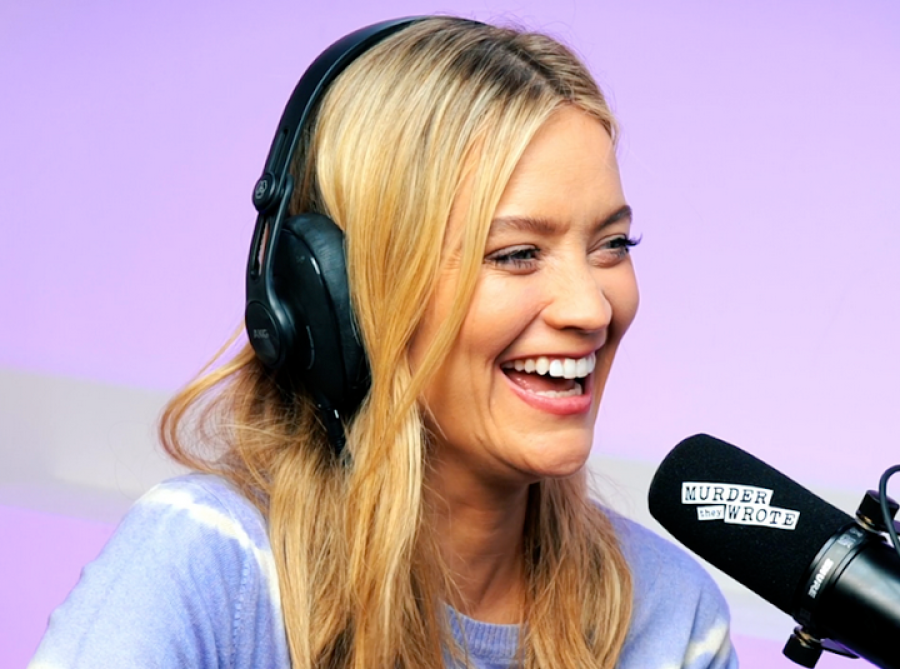
Video editing on a phone or tablet has become fast, flexible, and powerful enough for beginners, creators, podcasters, and small businesses alike. The best app for you depends on how much control you want, how quickly you need to publish, and whether you care more about social clips, polished edits, or all-in-one publishing workflows. For creators who also work in a Podcast studio or Video studio, mobile editing is especially useful because it lets you cut highlights, add captions, and prepare promo content right after a recording session.
Why mobile editing works
Editing on the go is no longer just a convenience; it is often the quickest way to turn raw footage into something publishable. Modern apps now handle trimming, transitions, subtitles, color changes, and audio cleanup in a way that used to require desktop software. That is one reason mobile tools are frequently recommended for fast social content and podcast clip creation, especially when you need to post from a commute, a café, or directly after a shoot. Mobile editing also pairs well with production workflows in a Recording studio because you can leave the studio with near-finished content instead of waiting until you return to a computer.
What beginners should look for
Beginners should focus on simplicity first and advanced features second. A good app should make it easy to trim clips, arrange a timeline, add text, export in the right format, and handle captions without a steep learning curve. According to current app roundups, popular choices for mobile editing include Adobe Express, Apple iMovie, Canva, CapCut, CyberLink PowerDirector, Instagram's Edits, and VN, while CyberLink highlights PowerDirector as a strong free option and PCMag's 2026 list includes several of these same apps.
Here are the most useful features to prioritize:
Easy trim and split tools.
Auto captions or subtitle support.
Music and basic audio controls.
Vertical video presets for Reels, TikTok, and Shorts.
Simple export settings for phone-friendly publishing.
Best apps to try
If you are just starting out, iMovie is one of the easiest places to begin on Apple devices because it is straightforward and beginner-friendly. CapCut is popular for quick social edits, trend-driven templates, and caption workflows, which makes it useful when speed matters more than advanced manual control. Canva is a strong choice if you want to create branded video posts with text, graphics, and marketing assets in one place. PowerDirector is often highlighted for its robust free feature set, including stabilization, transitions, and auto captions, which gives beginners room to grow without immediately paying for pro tools.
Best app by use case
Different creators need different tools, so it helps to match the app to the job rather than chasing the "best" app overall. A student making short clips, a podcast producer repurposing interviews, and a small business owner creating product videos will not have the same needs. The table below gives a practical starting point based on common beginner goals and the feature sets highlighted in recent app roundups by PCMag and CyberLink.
Podcast and studio workflow
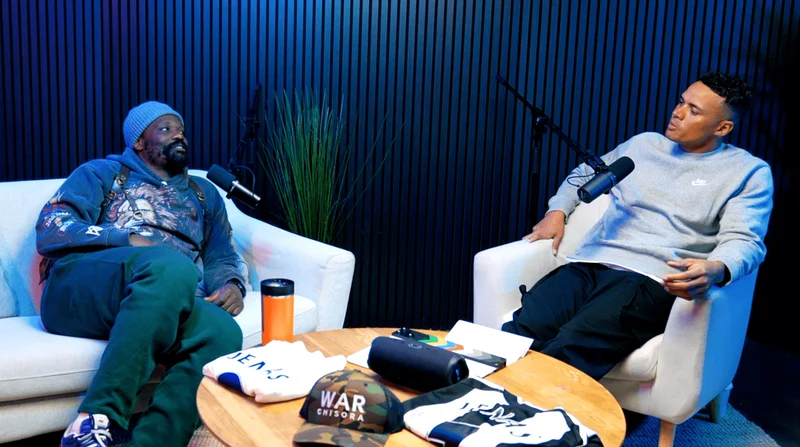
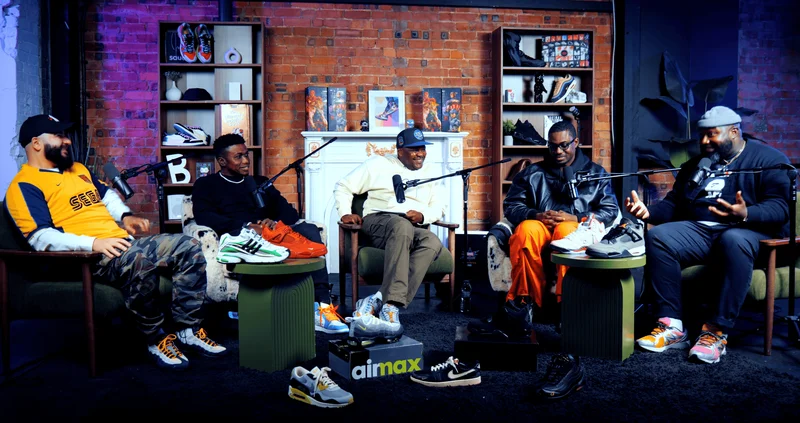
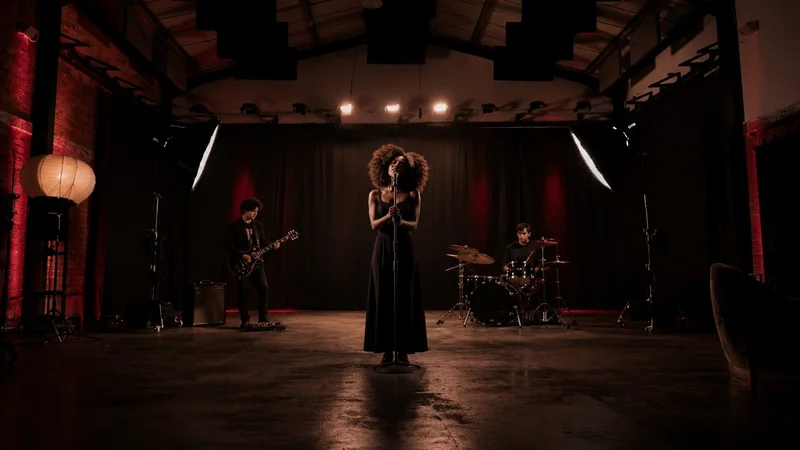
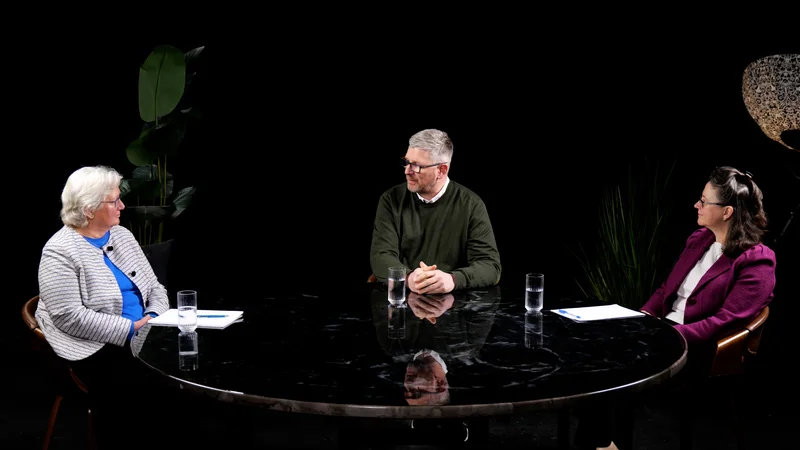
Mobile editing is particularly valuable for podcast creators because it supports a fast turnaround from recording to publishing. A creator might record in a London podcast studio, cut a 30-second teaser on the same day, and schedule it for social media before the episode even goes live. That workflow also suits a london Video studio or Video studio london environment where content is often captured in batches and then broken into multiple short-form assets. For teams that also work in a London Recording studio, mobile apps can help convert long sessions into clips, audiograms, and promotional reels with minimal delay.
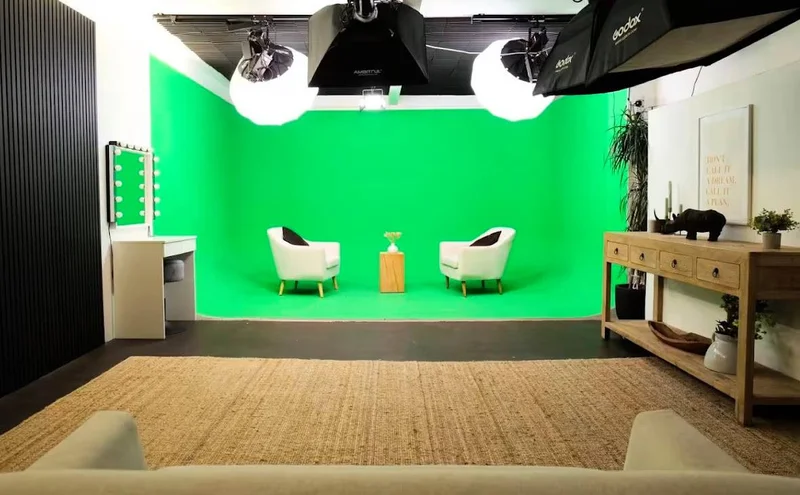
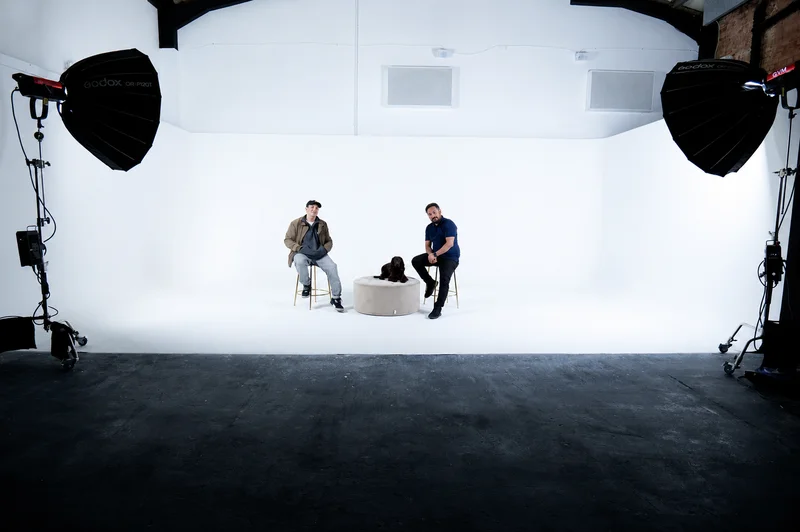
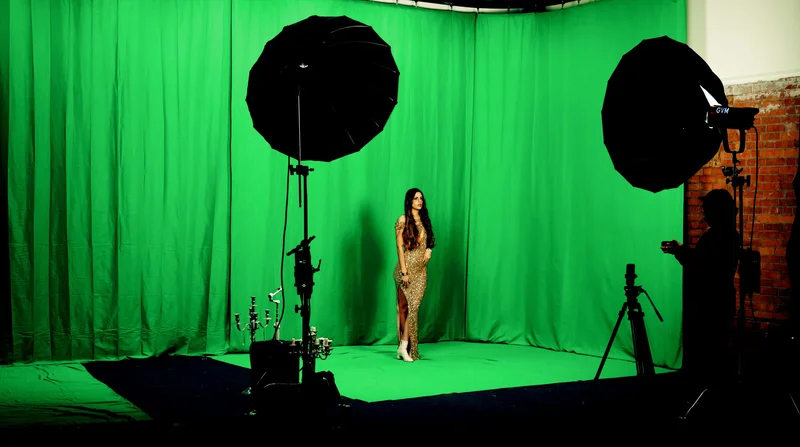
If you are comparing a typical London podcast studio setup with the Finchley studio, the main practical difference is often workflow convenience rather than editing ability. Finchley Studio presents itself as a North London option offering podcast, video editing, green screen filming, and professional photography, with 4K video, pro acoustics, and free parking highlighted on its site. It also states in its London Podcast Studios Explained guide that podcast studio bookings start at 1 hour 30 minutes and can be extended in 30-minute increments, which can be useful if you want to record, review takes, and leave with extra content ideas for mobile editing later.
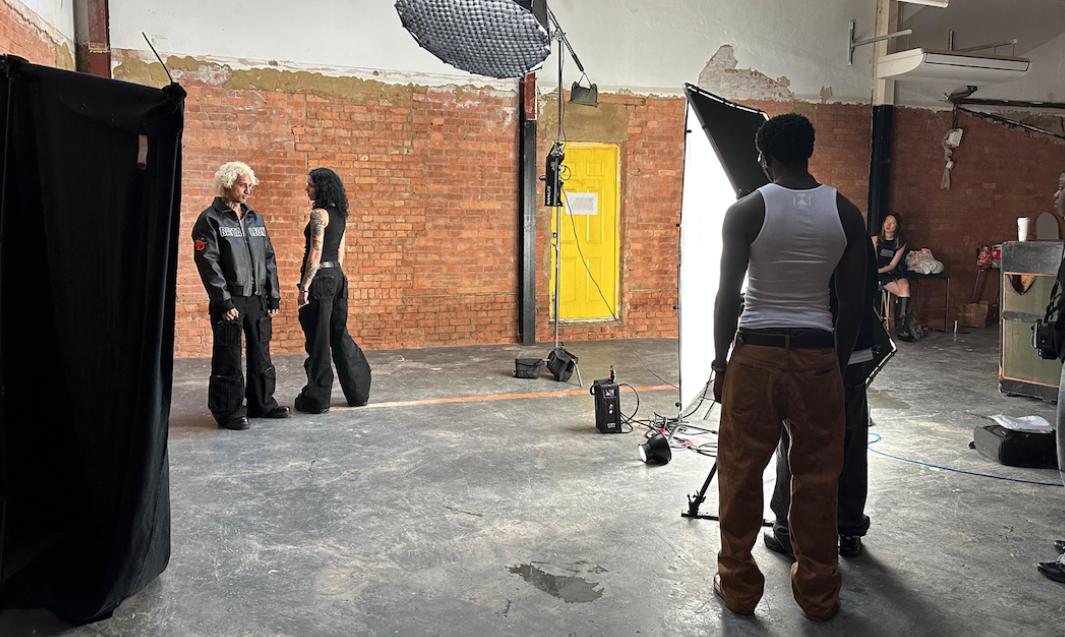
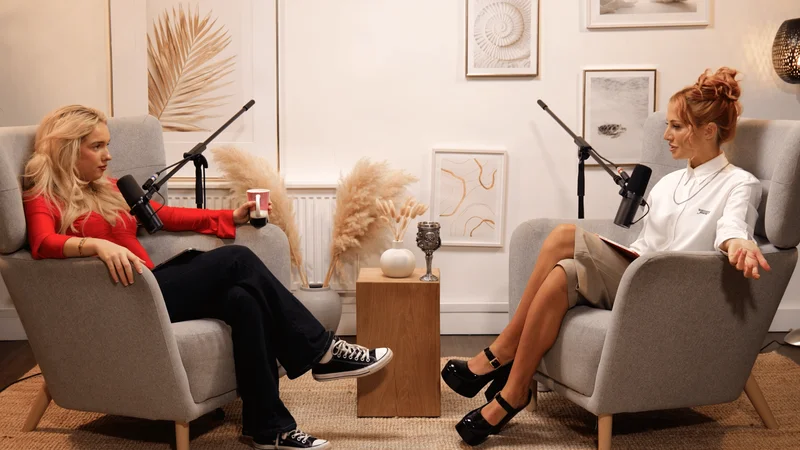
Image Credit: Finchley Studio
London studio comparison
When people search for a Podcast studio london or Recording studio london, they usually want reliability, professional equipment, and a setup that saves time. Central London studios often emphasize prestige, convenience, and a wide choice of locations, while Finchley Studio leans into North London accessibility, flexible booking, and bundled creative services. Finchley also says its pricing is transparent and that you can book in advance through its system, which may appeal to beginner creators who want a more guided experience rather than a large, complex studio network.
For creators choosing between a standard London podcast studio and Finchley Studio, the decision may come down to three things:
Location and travel time.
Whether you want only recording space or a broader creative setup.
How much help you need with booking, production, and follow-up content.
In practical terms, a central London studio may suit a corporate guest interview or high-profile brand shoot, while Finchley may be a better fit for creators who want podcast recording plus video support in one place. Finchley's own site positions it as a podcast and video-focused space in North London, which makes it relevant not only for audio-first sessions but also for creators who plan to repurpose content into social videos afterward.
Editing tips for beginners
A beginner-friendly workflow is to keep your edits short and focused. Start by removing pauses, then add captions, then tighten the audio, and finally export in the correct format for your platform. This sequence keeps you from over-editing and helps you finish faster, which matters when you are creating content from a Video studio session or turning a recorded interview into multiple posts. If you are editing on the move, work in short passes instead of trying to perfect everything in one sitting.
A few simple habits make a big difference:
Record with good lighting and stable framing so the edit is easier.
Save a template for intro and outro screens.
Keep captions large and readable on small screens.
Export a vertical version for social media and a horizontal version for YouTube when needed.
Booking Finchley Studio
If your goal is to record in a professional North London space and then edit clips on the go, Finchley Studio is a practical option to consider. Its site presents it as a podcast, video editing, green screen filming, and professional photography provider, and it offers online booking with flexible session lengths. You can book Finchley Studio here.
Final choice
For beginners, the best mobile video editing app is the one that gets you from raw footage to posted content with the least friction. CapCut, iMovie, Canva, and PowerDirector are all strong starting points depending on your device and your style of content. If your workflow includes a Podcast studio, Video studio london, or London Recording studio, mobile editing can turn each session into a stream of short, polished assets instead of a single finished file. Finchley Studio is worth considering if you want a London-based recording environment that supports both production and post-production thinking in one workflow.