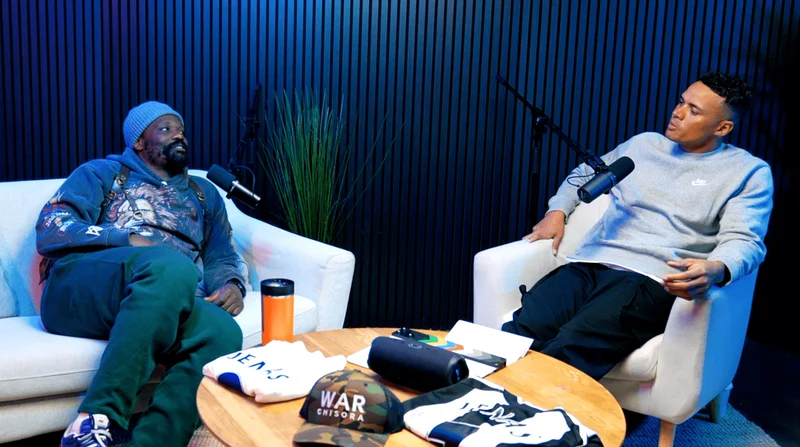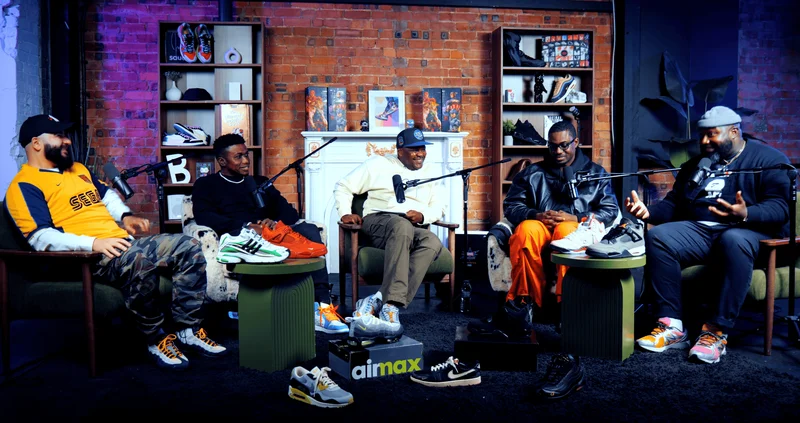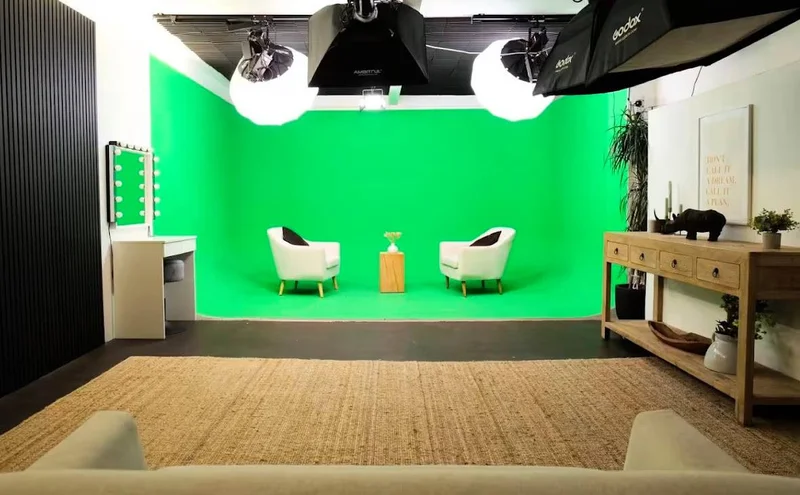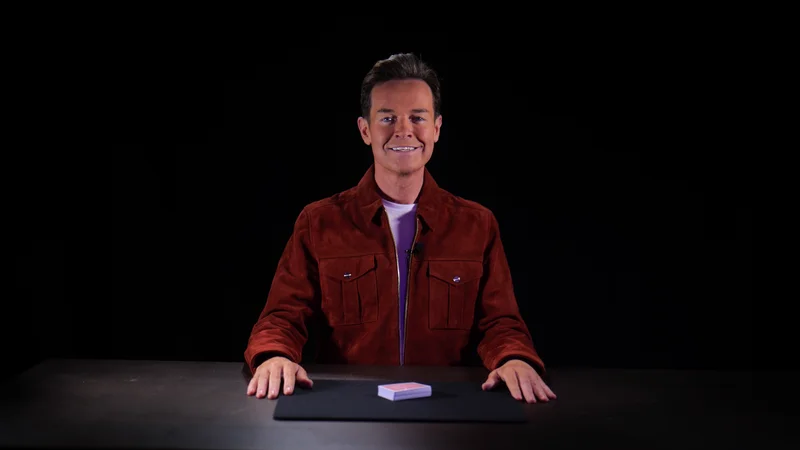
In today's digital world, professional-looking videos are essential for growing a podcast, YouTube channel, social-media brand, or business. Whether you're recording in a dedicated podcast studio, video studio, or recording studio in London, your raw footage only becomes "stunning" after thoughtful editing. This guide walks you through a complete, step-by-step workflow using mobile and desktop video-editing apps, then shows how pairing that process with a premium London space—such as Finchley Studio—can dramatically raise your production quality. YouTube Finchley Studio
1. Choose the right editing environment
Before you even open an app, decide where your footage will come from:
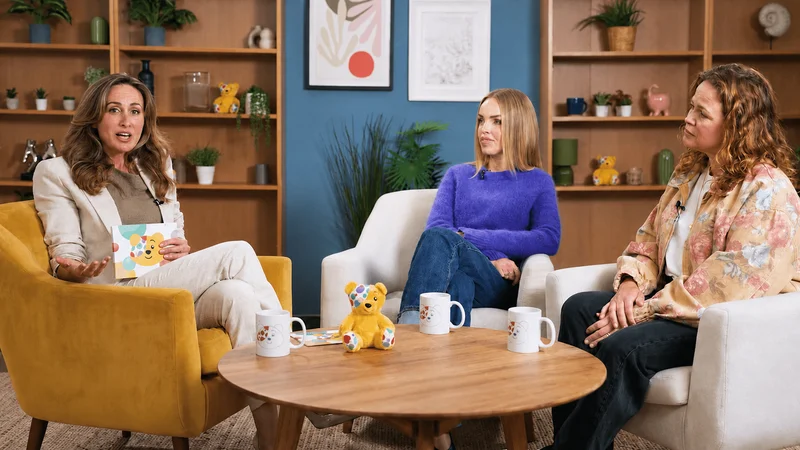
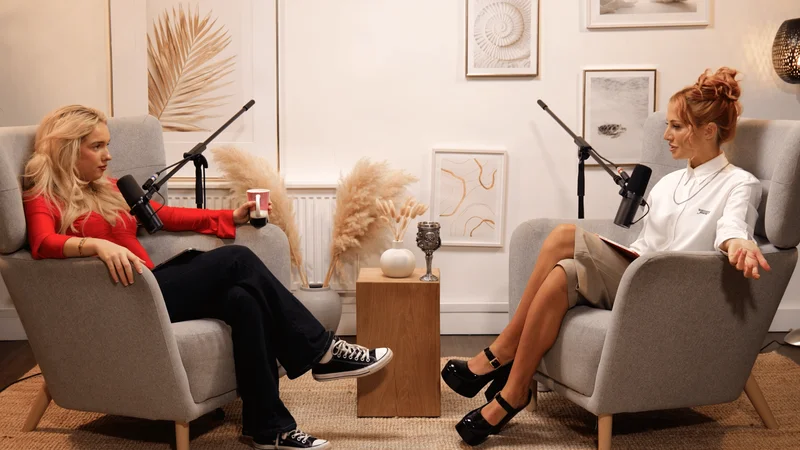
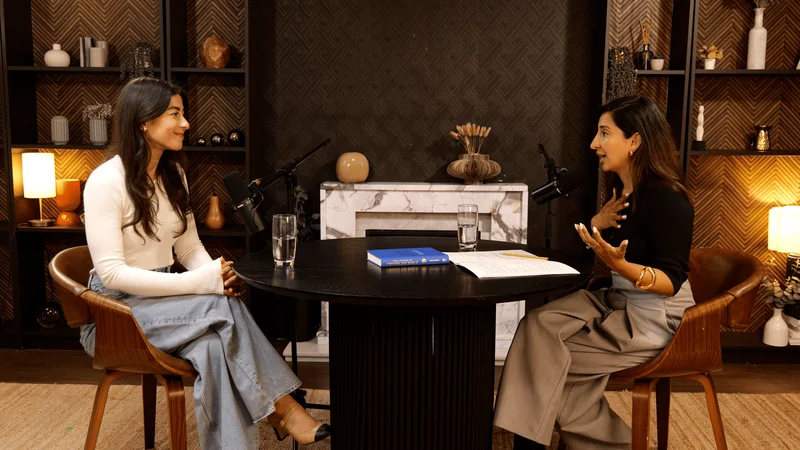
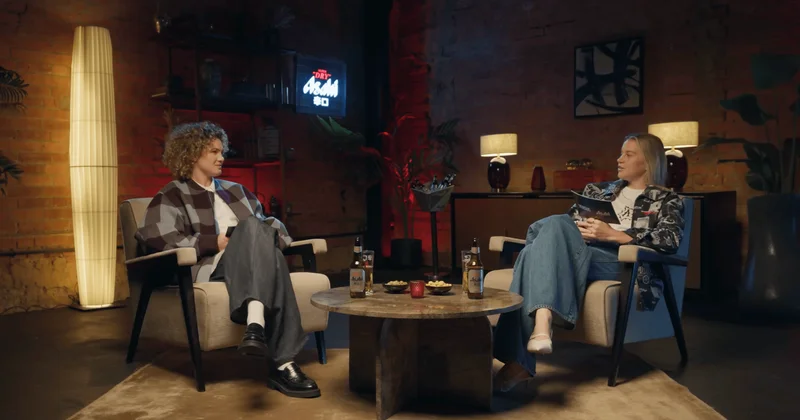
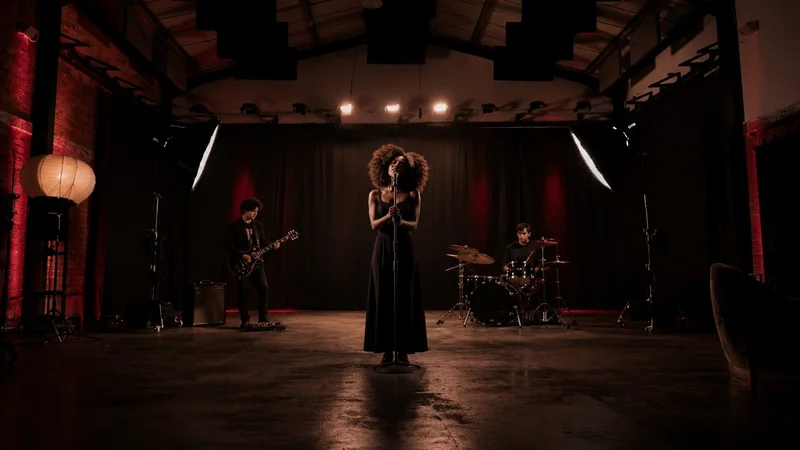
Professional podcast studio London or London podcast studio environments give you clean audio, flattering lighting, and consistent backdrops, which massively reduce the work your editing app must do. Finchley Studio
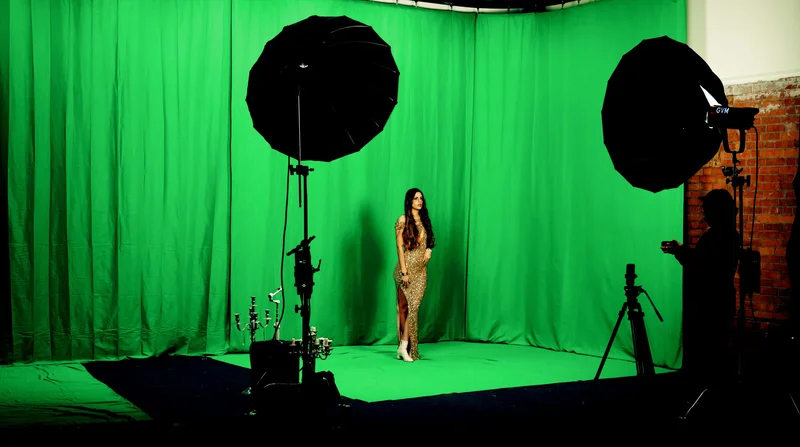
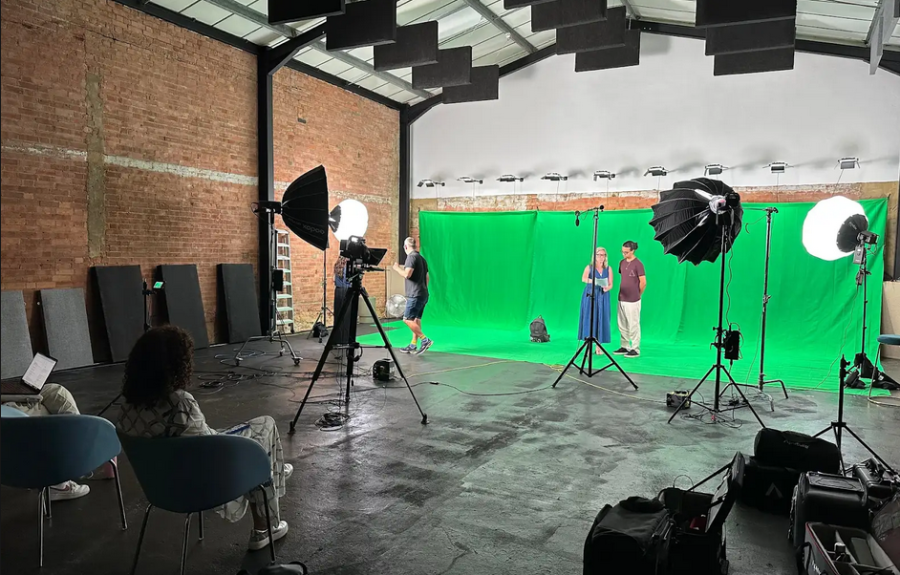
A video studio London (or London video studio) typically offers 4K cameras, green screens, and multi-cam setups, letting you cut between angles and create more dynamic edits. Finchley Studio
A recording studio London (or London recording studio) focuses first on acoustics and isolation, so voice-over and music-centric videos render cleanly in your timeline. Finchley Studio
Once you've recorded in one of these spaces, choose an editing app that matches your skill level and output:
Smartphone apps (e.g., InShot, CapCut, Canva, YouTube Create) are ideal for quick social clips, Instagram Reels, and short podcast promos. YouTube YouTube
Desktop apps (e.g., Premiere Pro, DaVinci Resolve, or the Riverside editor) suit long-form podcast episodes, multi-cam videos, and broadcast-ready content. Finchley Studio YouTube
2. Plan your video before you edit
Editing is faster and more consistent when you follow a simple pre-edit checklist:
1. Define your goal
Is this a full podcast episode, a video-podcast trailer, or a 15-second Instagram clip? Each format needs different pacing and visuals. Finchley Studio
2. Write a rough script or outline
Even if you're working from raw conversation, note key moments: "intro hook," "guest's big story," "call-to-action." This becomes your timeline roadmap. YouTube
3. Select your best footage
From a podcast studio London or London video studio, you may capture multiple angles and takes. Mark the best takes so you don't waste time reliving every bad take. Finchley Studio Finchley Studio
4. Gather assets
Pull together intro/outro videos, logo files, lower-thirds templates, music beds, and any B-roll you filmed on location.
3. Set up your editing app (beginner to intermediate)
The exact clicks differ by app, but most modern editors follow the same pattern:
A. Import and organise media
Create project folders for audio, video, music, and graphics.
In apps like CapCut or YouTube Create, import clips from your phone's gallery or cloud storage; on desktop, link to a master folder (e.g., from a London recording studio session). YouTube YouTube
B. Choose resolution and aspect ratio
For podcast and video studio content, common choices are:
16:9—YouTube, websites, and most streaming platforms. YouTube
9:16—Instagram Reels, TikTok, YouTube Shorts. YouTube
If your London podcast studio recorded 4K, you can freely crop and zoom in mobile apps without losing too much quality. YouTube
C. Lay out your timeline
Place clips in rough chronological order:
Intro (branding, music, host greeting).
Main content (conversation, presentation, or interview).
B-roll shots (cutaways, slides, product shots).
Outro (links, call-to-action, credits). YouTube Finchley Studio
Most apps (such as Riverside's editor or CapCut) let you drag and drop clips, then trim them with the timeline scroller. YouTube YouTube
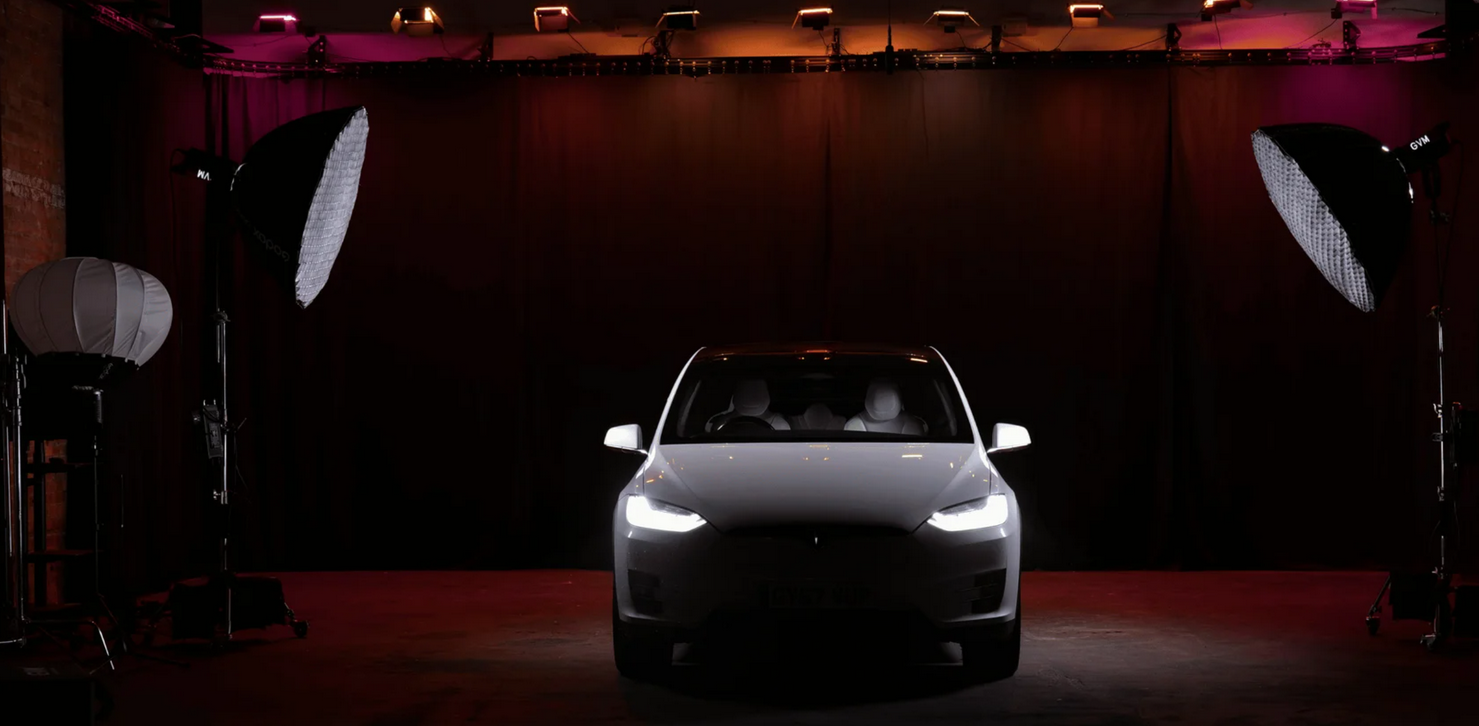
Finchley Studio (Giant Blackout Set): book this setup for your podcast
4. Trim and structure your core video
Now you turn your rough sequence into a tight, watchable story.
A. Cut the fat
Remove long pauses, "um"-filled sentences, and topic-drifting tangents.
Apps with transcript-based editing (such as Riverside) let you click on text words to auto-cut the corresponding audio/video, speeding this stage significantly. YouTube
B. Use J-cuts and L-cuts
A J-cut starts the audio from the next clip before the visual changes; an L-cut keeps the audio of the previous clip after the visual switches. These transitions make podcast conversations feel smoother and more cinematic.
C. Add basic transitions
Use short cross-dissolves or simple cuts between scenes rather than flashy effects, which can distract from your message. Finchley Studio
5. Enhance audio quality
Even the best podcast studio or recording studio in London can benefit from light post-production.
A. Reduce noise and balance levels
Desktop editors offer noise-reduction filters and equalisation; many mobile apps (like CapCut and InShot) include "voice enhancement" presets. YouTube YouTube
Aim for a consistent volume across all speakers so viewers don't have to keep adjusting their phones. YouTube
B. Add background music and sound design
Use non-copyright or licensed music beds that sit under your voices, not over them.
Apps such as YouTube Create and Canva include royalty-free music libraries that auto-duck (lower volume when speech is detected). Finchley Studio YouTube
C. Sync remote guests
If your London podcast studio recordings include remote interviewees (via Zoom, Riverside, etc.), sync their audio-video tracks by aligning claps or using a clapper-stick-style visual cue. YouTube
6. Add engaging visuals and text
Strong visuals turn ordinary podcast footage into compelling video content.
A. Use B-roll and overlays
Short clips of you typing, taking notes, or walking to the studio (often shot in a London video studio or recording studio) can be inserted between talking-head shots. Finchley Studio Finchley Studio
Some apps let you layer picture-in-picture or split-screen layouts so you can show multiple angles at once. YouTube
B. Insert titles and lower-thirds
Use simple text overlays to introduce speakers ("Amir Peikherfeh - Host") and emphasise key quotes.
Most apps (CapCut, Canva, YouTube Create) offer animated text presets that match modern podcast-style intros. Finchley Studio YouTube
C. Add captions and subtitles
Captioned videos perform better on social platforms and make your content accessible.
Tools like Riverside can auto-generate transcripts and then place animated captions directly on your timeline. YouTube
7. Use effects and colour grading (without overdoing it)
Editing apps tempt you to add dozens of filters and effects, but restraint creates a more professional look.
A. Apply subtle colour correction
Slightly adjust brightness, contrast, saturation, and white balance to make your London video studio lighting look consistent across all shots. Finchley Studio
Avoid overly stylised "cinematic" filters for casual podcast episodes unless they match your brand. Finchley Studio
B. Use selective effects
Use zoom-ins or ken-burns style pans on still images or graphics to add movement.
Add light glow or soft shadows behind text instead of harsh neon outlines. YouTube
8. Optimise pacing and rhythm
A "stunning" video doesn't just look good; it feels good to watch.
A. Prioritise the first 5-10 seconds
Open with a strong hook: a question, a surprising statement, or a quick montage of your best clips.
Many London podcast studio productions use branded intros (2-5 seconds) to set tone and music. Finchley Studio
B. Break up long segments
Insert quick B-roll, text overlays, or camera-angle changes every 15-30 seconds to hold attention.
Apps like CapCut and YouTube Create include "smart cutting" features that auto-suggest snappy cuts. YouTube YouTube
C. Use chapter markers for long episodes
Desktop apps support chapter markers that help listeners skip to specific topics in a long-form podcast video. YouTube
9. Export and format for different platforms
Different platforms have very different requirements for resolution, aspect ratio, and file size.
A. YouTube and websites
Export at 1080p or 4K, 16:9, with a bitrate that matches your app's "high quality" preset. YouTube
Keep file size manageable by balancing resolution and compression; many editors let you export "for YouTube" automatically. YouTube
B. Instagram Reels / TikTok / Shorts
Export 9:16 vertical video at 1080p, with a short, punchy intro and clear on-screen text. YouTube
C. Brand consistency
Use the same intro music, logo placement, and colour palette across all platforms so your podcast studio or video studio content feels recognisably yours. Finchley Studio
10. London podcast studios vs Finchley Studio
When you're producing video podcasts in the UK capital, you'll usually choose between generic London podcast studios and a more specialised, boutique facility like Finchley Studio. Here's how they compare:
A. Typical London podcast studios
Many podcast studio London spaces are located in central areas (e.g., Soho, Shoreditch, Camden) and offer sound-booth recording with basic acoustics and small video setups. Finchley Studio
Pricing is often higher per hour and may not include full-service video recording, editing, or creative support. Finchley Studio
Amenities can be limited: shared lobbies, tight booking windows, and sometimes complicated travel or parking logistics.
B. Finchley Studio: a premium London-area alternative
Finchley Studio brands itself as London's premier content creation space for audio podcast recording, video podcast filming, green-screen work, and photography. Finchley Studio
It offers 4K video, pro-grade acoustics, and multiple dedicated rooms (including lounges and larger group-recording spaces), which is ideal if you want both podcast and video output in one session. Finchley Studio Finchley Studio
The studio is just two minutes from Finchley Central tube, with free parking and easy access from surrounding London boroughs, making it more convenient for presenters and guests. Finchley Studio Finchley Studio
C. Flexibility and support
Finchley Studio offers transparent, package-based pricing (around £69/hour for versatile spaces) and includes top-tier equipment hire, so you don't need to bring your own cameras or mics. Finchley Studio Finchley Studio
They also provide video editing services (starting at £299) for polishing podcast-length episodes or short clips, which can save you weeks of DIY work. Finchley Studio
In short, while traditional London podcast studio options get the job done, Finchley Studio offers a more integrated, production-ready experience for creators who want both high-quality recording and strong post-production support. Finchley Studio Finchley Studio
11. How to incorporate a studio into your editing workflow
If you book a session at a podcast studio, video studio, or recording studio in London, follow these best-practice steps:
1. Record with editing in mind
Use clear visual cues (e.g., hand-claps) to mark scene starts/ends.
Capture spare B-roll and silent ambient shots for smooth transitions. YouTube
2. Organise files before you start editing
Create clearly-named folders such as "Finchley Studio - Episode 1 - 4K," "B-roll - London," and "Music." Finchley Studio
3. Use the studio's strengths in your edit
Leverage the 4K video and sound-proof rooms of Finchley Studio to create clean, multi-angle edits without background noise. Finchley Studio Finchley Studio
4. Consider outsourcing the final polish
Many creators use studios like Finchley not only for recording but also for post-production editing, which can dramatically speed up publishing cycles. Finchley Studio
12. When to book Finchley Studio for your next project
If you're serious about creating stunning videos and want a professional, hassle-free environment in North London, Finchley Studio is an excellent choice for:
Full-length podcast episodes with video.
Short-form social clips (Reels, Shorts, TikToks) cut from one recorded session.
Business-branding videos such as interviews, testimonials, or explainer series. Finchley Studio Finchley Studio
To get started, you can book your session directly through their online booking page:
Book your space at Finchley Studio Finchley Studio
Once you've recorded your next episode in their 4K-ready, acoustically treated studio, you can then apply the step-by-step editing techniques in this article to craft polished, attention-grabbing videos that look and sound like they came from a major broadcaster—all from a single London-area facility. Finchley Studio Finchley Studio
http://googleusercontent.com/youtube_content/358