The Evolution of Podcast Audio Engineering
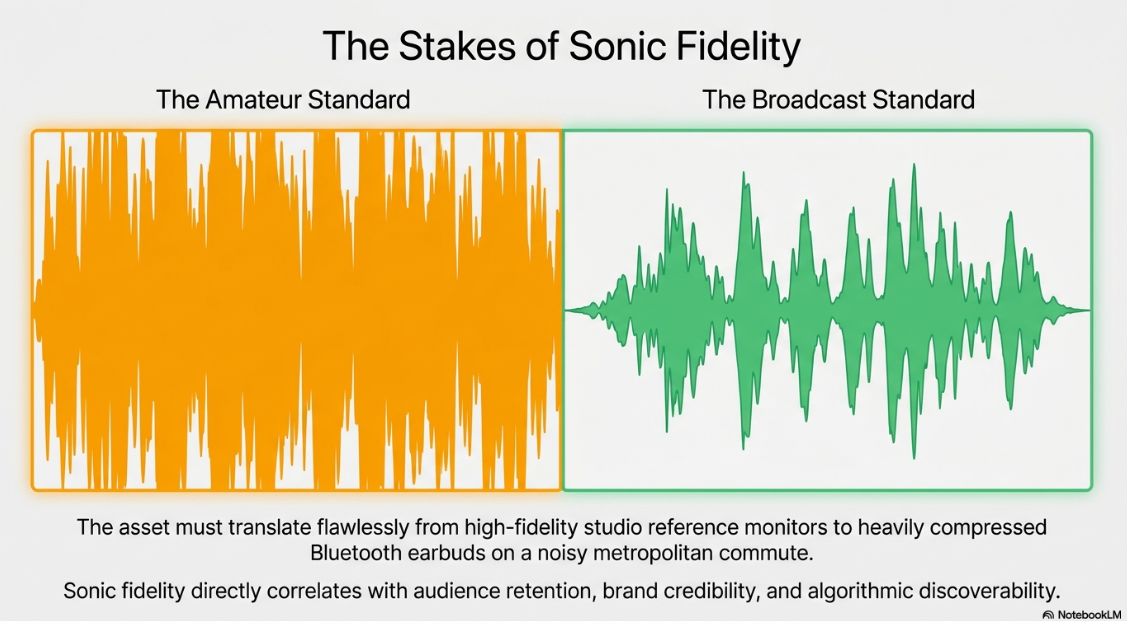
The maturation of the podcasting industry has necessitated a rigorous, broadcast-grade approach to audio engineering. What began as a decentralized, largely amateur medium characterized by highly variable production values has rapidly evolved into a highly competitive global broadcasting sector. In this contemporary landscape, sonic fidelity directly correlates with audience retention, brand credibility, and algorithmic discoverability. Professional audio execution in podcasting is no longer merely about capturing a clear voice; it involves a complex sequence of technical decisions regarding digital sampling, dynamic range control, psychoacoustic compression, and strict adherence to platform-specific mastering standards.
When an audio file is delivered to an end-user, it must translate flawlessly across an extraordinarily diverse array of playback environments. A single podcast file may be streamed through high-fidelity studio reference monitors, heavily compressed Bluetooth earbuds navigating a noisy metropolitan commute, or a smartphone speaker with a highly restricted frequency response. To ensure intelligibility and prevent listener fatigue across all these mediums, audio engineers and podcast producers must adhere to stringent specifications regarding perceived loudness, true peak limits, and codec efficiency. Furthermore, the software environment utilized for post-production—frequently open-source solutions such as Audacity—must be meticulously configured to preserve signal integrity while preparing the asset for digital distribution over RSS feeds.
The following analysis provides an exhaustive examination of digital audio fundamentals, the dichotomy between uncompressed and compressed file formats, industry-standard loudness and true peak specifications, and the precise configuration of Audacity for professional podcast delivery and archival.
The Physics and Mathematics of Digital Audio
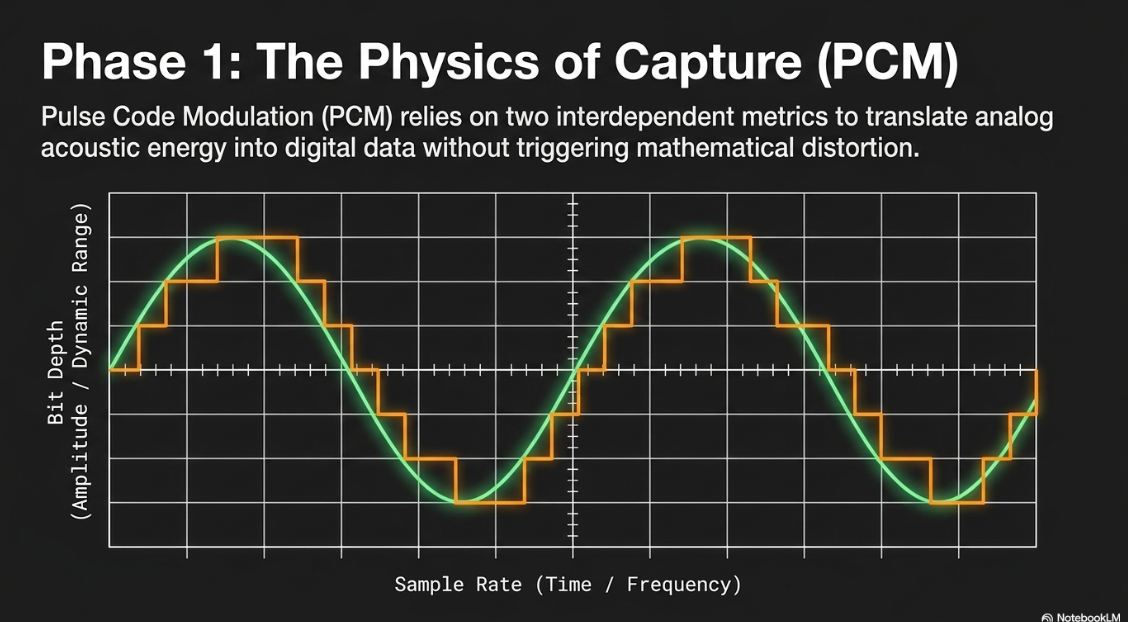
Before analyzing specific file container formats and codecs, it is imperative to establish a foundational understanding of how analog acoustic energy is translated into digital data. Analog sound waves are continuous, physical variations in air pressure. To store this information digitally, the analog signal must be captured and quantized through a process known as Pulse Code Modulation (PCM)1. This conversion process relies on two interdependent metrics: sample rate and bit depth.
Sample Rate and Frequency Response
The sample rate defines the number of times per second the continuous analog audio waveform is measured, or "sampled," during the analog-to-digital conversion process. Expressed in Hertz (Hz) or kilohertz (kHz), the sample rate is directly responsible for the maximum frequency response of the resulting digital audio file4.
According to the Nyquist-Shannon sampling theorem, a digital system can accurately capture and reproduce frequencies up to exactly half of its sample rate, a threshold known as the Nyquist limit. Any frequencies exceeding this limit during capture will fold back into the audible spectrum, creating severe mathematical distortion known as aliasing.
In the context of podcasting and multimedia production, several distinct sample rates are utilized:
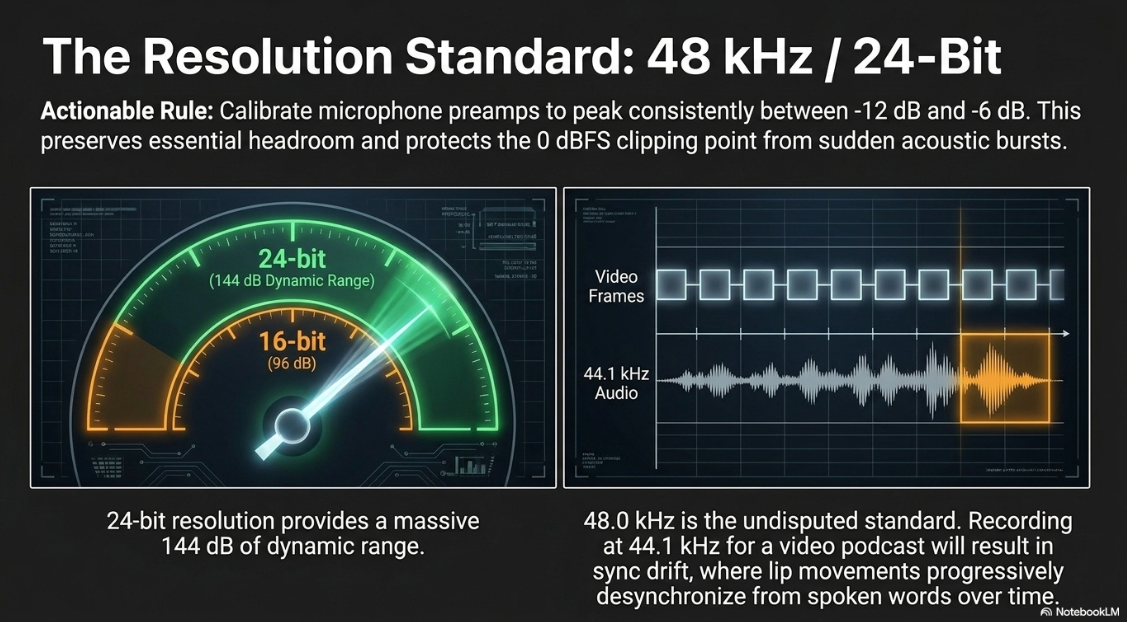
The distinction between 44.1 kHz and 48 kHz is of critical importance when a production workflow involves both audio and video assets. If audio is recorded at 44.1 kHz and subsequently imported into a video editing timeline set to a 48 kHz project standard without proper mathematical resampling, the audio will experience a phenomenon known as "sync drift"5. Over the course of a long recording, the audio will slowly desynchronize from the video frames, resulting in noticeable lip-sync errors where a speaker's physical mouth movements no longer match the spoken words5. Therefore, for any podcast incorporating a video element, 48 kHz is the uncompromising standard for the initial recording5.
Bit Depth, Dynamic Range, and Recording Levels
While the sample rate dictates the frequency response, the bit depth dictates the dynamic range of the audio recording. Dynamic range is the mathematical difference between the quietest possible sound (the digital noise floor) and the loudest possible sound before catastrophic digital distortion, known as clipping, occurs4. Higher bit depths capture exponentially more detail regarding the amplitude of each sample4.
16-bit: Provides approximately 96 decibels (dB) of dynamic range. This was the long-standing standard for CDs and remains entirely sufficient for final delivery and consumer playback4.
24-bit: Provides approximately 144 dB of dynamic range. This is widely considered the mandatory baseline for professional recording, editing, and mixing1.
32-bit Float: An advanced format that mathematically prevents clipping above 0 dBFS during internal software processing, utilized internally by digital audio workstations (DAWs) like Audacity during complex mixdowns11.
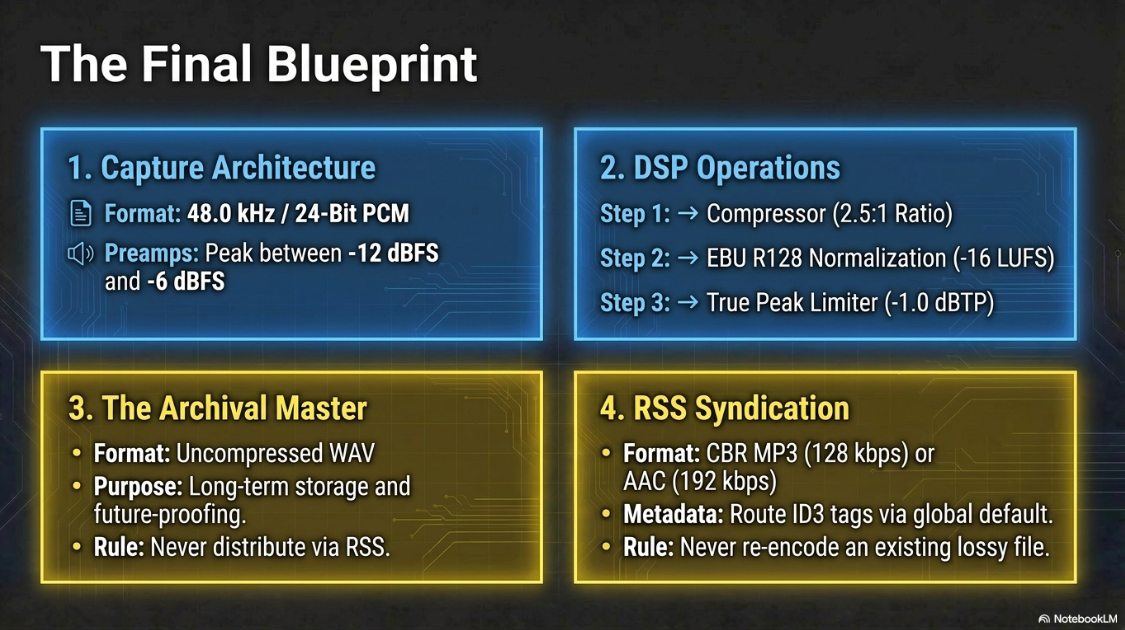
Recording at 24-bit resolution is paramount because it affords the producer substantial headroom. Headroom is the safety margin between the average recording level and the 0 dBFS clipping point. When utilizing 24-bit depth, producers are advised to calibrate their microphone preamplifiers so that the speaker's voice consistently peaks between -12 dB and -6 dB on the recording meter4. This ensures the voice is loud enough to overcome environmental noise but quiet enough to easily absorb sudden bursts of laughter or shouting without distorting4.
Capturing audio too "hot" (peaking consistently above -3 dB) in an attempt to maximize raw volume during the recording phase is a hallmark of amateur production. This approach risks digital distortion, which introduces harsh, permanent, uncorrectable artifacts into the file that make professional audio engineers wince4. Conversely, recording too quietly forces the listener to maximize their device volume, which simultaneously amplifies the background noise floor (hiss) of the recording environment, creating severe listener fatigue4. By utilizing a 24-bit depth and maintaining a -12 dB to -6 dB recording range, ample headroom is preserved. This allows for extensive manipulation, equalization, and compression in post-production without degrading the signal-to-noise ratio2.
File Formats and Compression Mechanisms
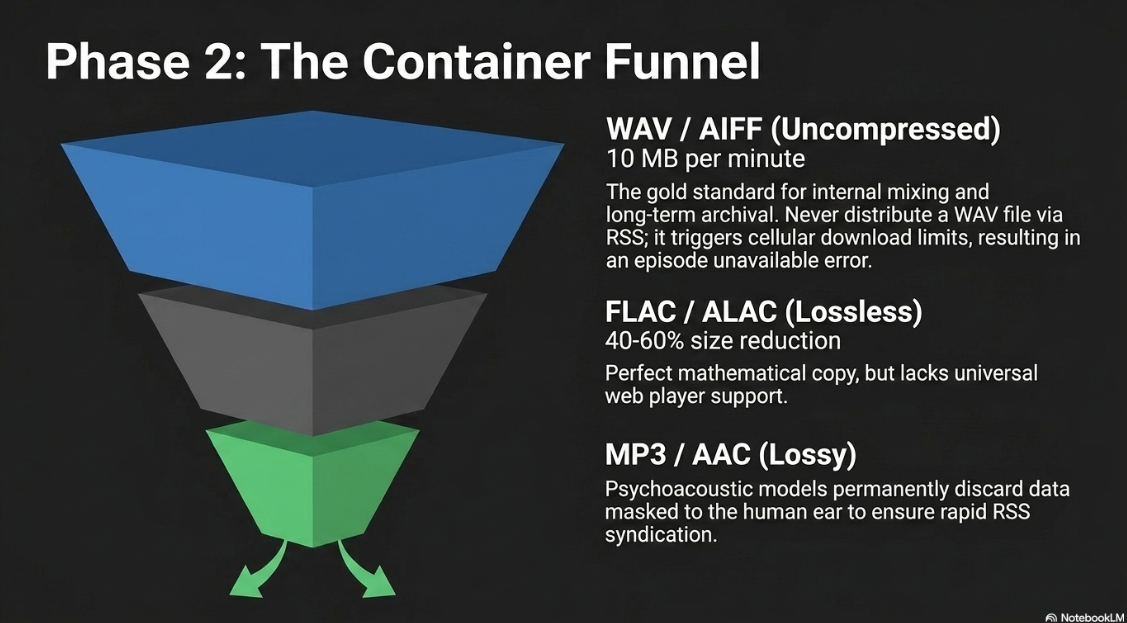
The digital audio ecosystem relies on a variety of container formats and codecs (coder-decoders) to store, edit, and transmit audio data. These formats are broadly categorized into uncompressed files, lossless compressed files, and lossy compressed files15. Selecting the appropriate format at each stage of the production pipeline is critical for establishing a nondestructive editing workflow and an efficient distribution mechanism.
Uncompressed Audio Formats: The Production Foundation
Uncompressed audio formats store raw PCM data exactly as it was captured by the analog-to-digital converter, meaning absolutely no data is discarded or manipulated to save storage space2. The primary uncompressed formats are WAV (Waveform Audio File Format), developed by Microsoft, and AIFF (Audio Interchange File Format), developed by Apple2.
WAV files represent the gold standard for recording, editing, mixing, and archiving professional audio3. Because they retain 100% of the original data, they handle digital signal processing—such as aggressive equalization, artificial reverberation, and heavy dynamic compression—exceptionally well without introducing generation loss2. However, this pristine fidelity results in massive, unwieldy file sizes. A single minute of CD-quality stereo audio (44.1 kHz / 16-bit) occupies approximately 10 Megabytes (MB)3. Consequently, a standard 60-minute podcast episode in its raw, uncompressed form will easily exceed 600 MB3.
Due to these prohibitive file sizes, WAV files are generally unsuitable for final podcast distribution over RSS feeds. Uploading massive uncompressed files to podcast hosting platforms drastically increases bandwidth costs, rapidly consumes user storage limits, and leads to severe playback buffering for listeners on mobile networks17. Furthermore, major distribution platforms implement strict cellular download limits. Apple Podcasts, for instance, restricts automated file downloads over cellular connections to 150 MB. If a podcaster publishes an uncompressed WAV file, mobile listeners will be greeted with an "episode unavailable" error, creating a highly frustrating user experience19. Therefore, WAV should be strictly reserved for the production master file and long-term archival purposes, never for direct distribution3.
Lossless Compression: Archival Efficiency
Lossless compression algorithms reduce file sizes by finding and mathematically packing redundancies in the data, functioning similarly to how a standard .zip file operates for text documents. When a lossless file is decoded and played back, the resulting audio is bit-for-bit identical to the original uncompressed source, resulting in zero degradation of sonic fidelity2.
The most prominent lossless format is FLAC (Free Lossless Audio Codec)2. FLAC typically achieves a 40% to 60% reduction in file size compared to a standard WAV file, making it highly efficient for storage while maintaining perfect quality2. Another alternative is ALAC (Apple Lossless Audio Codec), which performs a nearly identical function natively within the Apple ecosystem2.
While FLAC is highly favored by audiophiles, musicians, and sound designers requiring pristine archival storage with a smaller digital footprint, it remains largely impractical for general podcast distribution. Many standard web players and older mobile devices lack native hardware support for FLAC decoding, and the file sizes—though halved compared to WAV—are still generally too large for rapid, bandwidth-efficient RSS syndication3.
Lossy Compression: The Distribution Standard
To facilitate seamless streaming, rapid downloads, and universal compatibility, the podcasting industry relies almost exclusively on lossy compression8. Lossy codecs utilize highly complex psychoacoustic models to analyze the audio and permanently discard data that the human auditory system is mathematically unlikely to perceive2.
This process relies heavily on auditory phenomena such as frequency masking—where a louder sound renders a simultaneous quieter sound in an adjacent frequency band completely inaudible to the human ear2. By identifying these masked sounds and discarding the data used to represent them, lossy encoders can strip away substantial portions of the file's data footprint2. While lossy compression fundamentally alters the waveform and permanently degrades the signal, the perceptual difference to the average listener is minimal when encoded at sufficiently high bitrates2.
MP3 (MPEG-1 Audio Layer III)
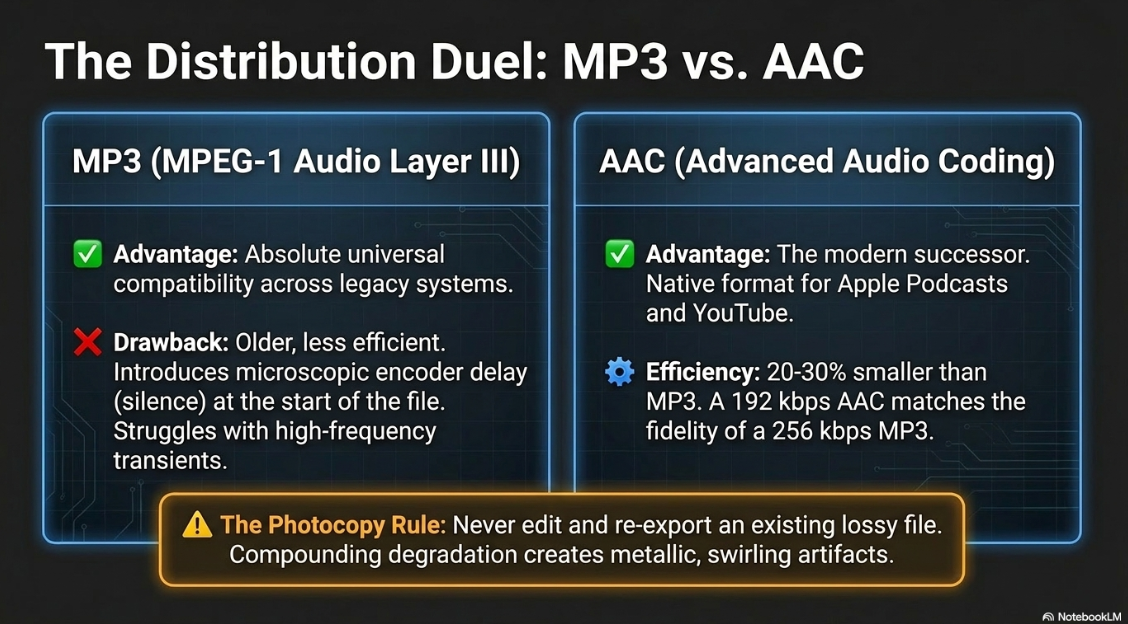
The MP3 format is the undisputed, ubiquitous historical standard for global podcast distribution3. Its primary advantage is absolute universal compatibility; virtually every digital device, operating system, media player, and web browser natively supports MP3 playback2. For podcasters seeking zero friction in their publishing pipeline, MP3 is the safest container17.
However, MP3 is a comparatively older and less efficient codec. It struggles with complex high-frequency transients (such as cymbals or sibilant speech) and can introduce audible "swishy," pixelated, or metallic artifacts at lower bitrates2. Furthermore, the MP3 specification inherently introduces a microscopic fraction of silence at the very beginning of the file due to encoder delay6. While this milliseconds-long delay is entirely irrelevant for a standard hour-long podcast episode, it makes MP3s unsuitable for creating seamless, looping audio for game design or ambient soundscapes6. Despite these technical shortcomings, MP3 remains the default choice to guarantee that an RSS feed functions flawlessly across all aggregators and podcatchers8.
AAC (Advanced Audio Coding) / M4A
AAC, frequently housed within an .m4a container, represents the modern successor to MP33. Engineered to provide superior sound quality at substantially lower bitrates, AAC achieves an estimated 20% to 30% reduction in file size compared to an MP3 of indistinguishable perceptual quality5. For example, a podcast encoded in AAC at 192 kbps will exhibit the acoustic warmth and clarity of a 256 kbps MP35.
AAC is the native format favored by Apple devices, YouTube, and the massive Apple Podcasts directory1. In fact, Apple actively recommends AAC for podcast RSS feeds. Specifically, they recommend utilizing the MP4 container format (M4A) over the ADTS format, noting that MP4 allows for the most efficient streaming usage and highly accurate seeking and scrubbing during playback1. While adoption is growing rapidly, some podcasters hesitate to utilize AAC universally due to lingering concerns regarding compatibility with older, niche Android applications or legacy web players, though modern ecosystems handle AAC seamlessly19.
Ogg Vorbis and WMA
Ogg Vorbis is an open-source, patent-free lossy format3. It boasts exceptional audio quality that frequently outperforms MP3 at identical bitrates3. Ogg Vorbis is notably the streaming format natively utilized by Spotify for its platform delivery3. However, because its native support across third-party podcast applications and Apple devices is inconsistent, it is rarely chosen as the primary format for global RSS feed distribution20.
WMA (Windows Media Audio) is a proprietary format developed by Microsoft16. While it achieves slightly better compression than MP3, its utility is severely limited by a lack of universal compatibility outside the Microsoft ecosystem, rendering it obsolete for podcasting3.
Bitrate and Encoding Strategies
When exporting to a lossy format like MP3 or AAC, the producer must specify the bitrate, measured in kilobits per second (kbps). The bitrate determines how much data is allocated to represent each second of audio2. Higher bitrates yield superior fidelity and broader frequency responses at the direct expense of larger file sizes1.
Furthermore, the encoder can operate in different allocation modes:
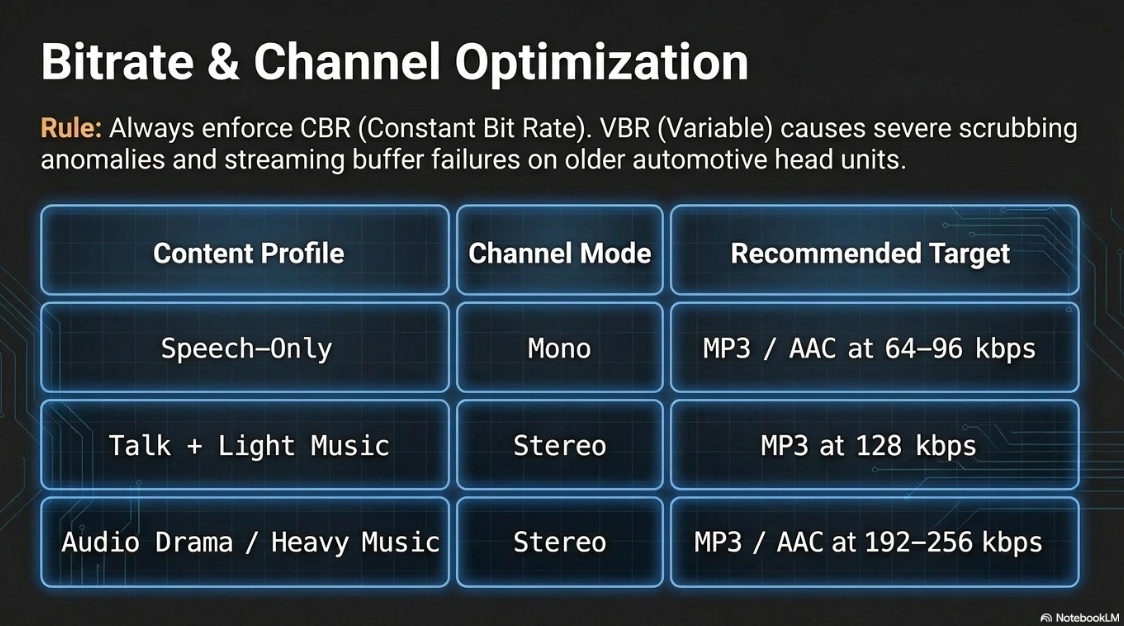
CBR (Constant Bit Rate): The encoder utilizes the exact same amount of data for every single second of audio, regardless of the audio's complexity6. CBR is strongly recommended for podcasts because it guarantees highly predictable file sizes and ensures absolute stability during internet streaming6. Some older podcast players and automotive head units struggle to correctly calculate the total duration or scrub through files encoded with variable rates9.
VBR (Variable Bit Rate): The encoder dynamically adjusts data allocation, assigning more bits to complex sonic passages (e.g., a dense musical intro with full instrumentation) and fewer bits to simple passages (e.g., a solitary voice or silence)6. While VBR mathematically optimizes the file size-to-quality ratio and is preferred for local music libraries, it is generally discouraged for podcast RSS distribution due to the aforementioned streaming and playback timestamp anomalies6.
ABR (Average Bit Rate): A hybrid mode that sets a known, predictable average file size while allowing minor fluctuations in bit allocation, though it remains less stable for streaming than pure CBR6.
The industry standards for podcast bitrates are deeply dependent on the content style and the channel configuration (Mono vs. Stereo).
It is a cardinal rule of digital audio that a producer must never take an existing lossy MP3, edit it, and re-export it as another MP33. Every time an audio file is encoded to a lossy format, more data is permanently discarded. Re-compressing an already lossy file compounds the degradation, creating harsh, swirling artifacts. This process is synonymous with repeatedly photocopying a photocopy3. Lossy compression must only be applied once, strictly as the final step in the pipeline when exporting the master WAV file for distribution3.
Mastering for Streaming: Loudness, Dynamics, and Delivery
Achieving proper fidelity is only one half of the audio execution paradigm; controlling the audio's volume is equally critical. If a podcast is delivered too quietly, listeners must maximize device volume, exposing the electronic noise floor (hiss) of their amplifiers or the background noise of the recording4. If delivered too loudly, the audio will clip, generating harsh digital distortion4. Furthermore, wildly inconsistent volume between different podcast episodes or between the podcast and dynamic ad insertions causes severe listener fatigue4. To mitigate this chaos, modern streaming platforms employ strict Loudness Normalization protocols.
Understanding LUFS (Loudness Units relative to Full Scale)
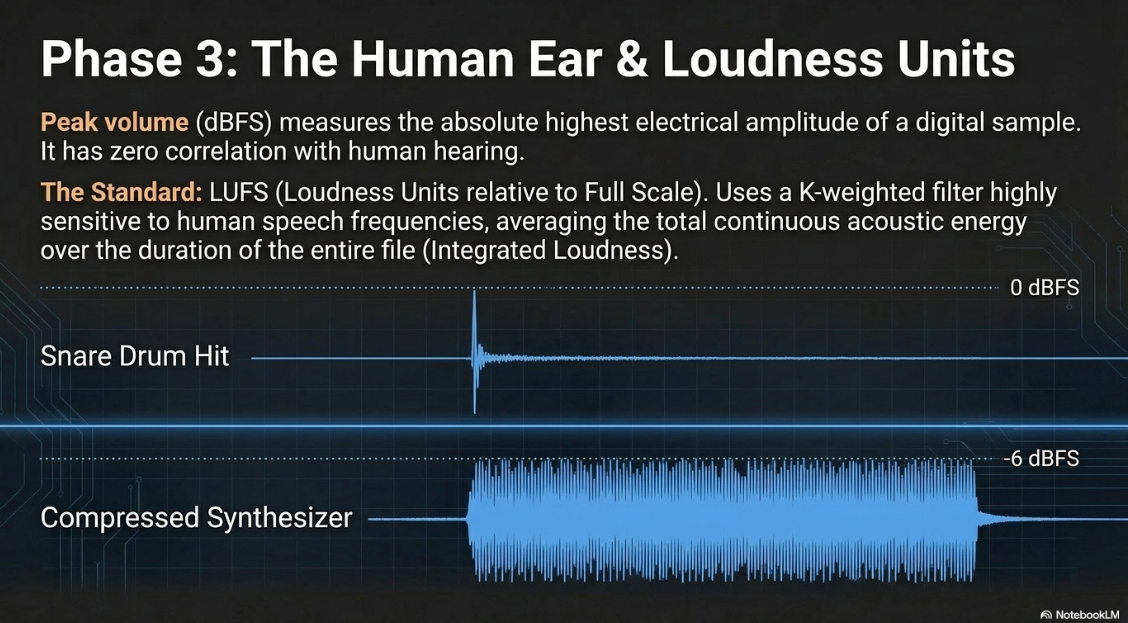
Historically, audio engineers monitored peak volume—the absolute highest electrical amplitude of a digital waveform, measured in Decibels Full Scale (dBFS)5. However, peak volume has very little correlation with how human beings actually perceive continuous loudness. A sharp, instantaneous snare drum hit might peak at 0 dBFS but sound relatively quiet, whereas a densely compressed, sustained synthesizer chord peaking at -6 dBFS might sound agonizingly loud due to its sustained acoustic energy.
To address this disparity, the broadcasting industry adopted the LUFS (Loudness Units relative to Full Scale) standard, formalized under international specifications such as ITU-R BS.1770 and EBU R12814. LUFS integrates a "K-weighted" filter that mimics the frequency response of human hearing. The human ear is highly sensitive to upper-midrange frequencies (where human speech resides) and less sensitive to sub-bass14. The LUFS algorithm accounts for this sensitivity and averages the audio energy over the entire duration of the file24. This long-term average measurement is known as Integrated Loudness12.
By mastering a podcast to a specific Integrated LUFS target, producers ensure a uniform, fatigue-free listening experience, preventing the listener from constantly adjusting their volume knob5.
True Peak (dBTP) and Intersample Clipping
Alongside Integrated LUFS, engineers must carefully monitor True Peak, measured in dBTP (Decibels True Peak)12.
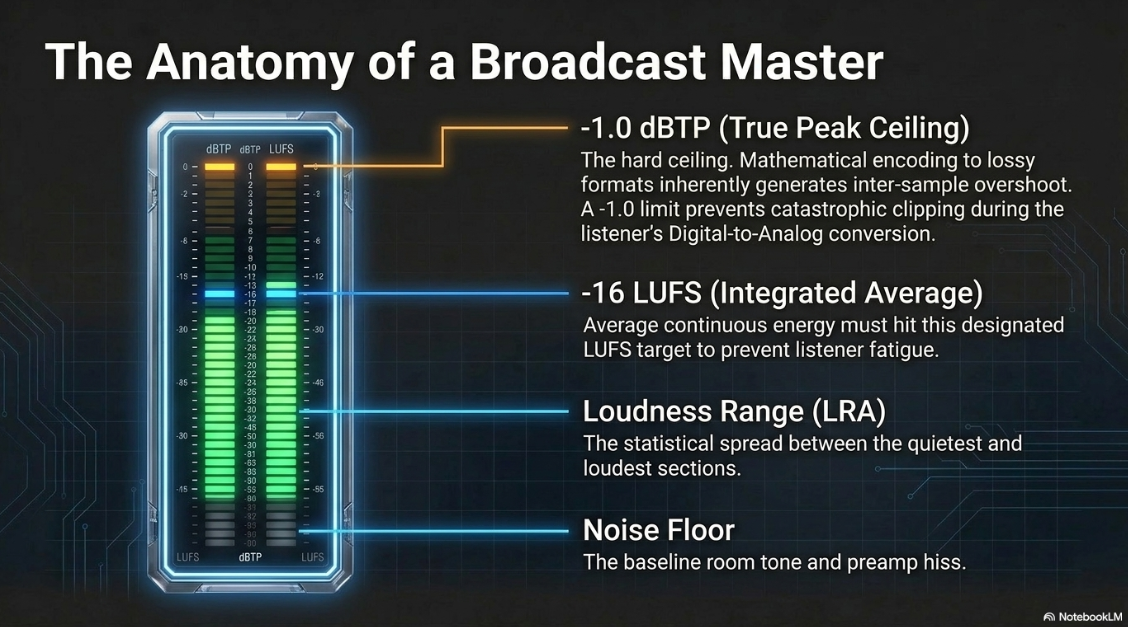
In a digital system, the audio waveform is represented by discrete staircase-like samples. Standard peak meters only read the amplitude of these specific, static digital samples25. However, when digital audio is converted back to a continuous analog signal by a listener's Digital-to-Analog Converter (DAC) inside their smartphone or laptop, the continuous analog curve drawn between the digital samples can actually overshoot the highest recorded sample value27. This mathematical overshoot is known as an inter-sample peak.
If a podcast is pushed to a peak limit of 0.0 dBFS, the subsequent inter-sample peaks generated upon playback will exceed the DAC's capabilities, causing clipping and distortion12. Furthermore, the mathematical process of encoding a pristine WAV file into a lossy MP3 or AAC format inherently generates new inter-sample peaks, frequently increasing peak levels by up to 1.0 dB12.
To prevent catastrophic distortion during encoding and consumer playback, the podcasting and streaming industries mandate a strict True Peak hard ceiling of -1.0 dBTP12. Any professional mastering process must employ a specialized True Peak limiter (such as Nugen Audio's ISL or the Sonnox Oxford Limiter) to strictly enforce this barrier14.
Loudness Range (LRA)
Loudness range (LRA) is a supplementary measurement defined in the EBU R128 specification. It describes the statistical spread of loudness within a track—the difference in LUFS between the quieter sections and the louder sections25. A podcast with an LRA of 2 LU has almost zero dynamic variation, sounding uniformly loud and heavily compressed25. A track with an LRA of 12 LU has significant dynamic variation25. While there is no rigid standard for LRA in podcasting, heavily compressing a voice to an LRA of 2 LU results in an unnatural, fatiguing sound, whereas leaving it too wide (above 14 LU) makes quiet dialogue inaudible in noisy environments25.
Platform-Specific Normalization Standards
When a podcast is ingested by distribution platforms like Apple Podcasts, Spotify, or YouTube Music, the platform's ingest servers analyze the file's Integrated LUFS. If the file deviates from the platform's proprietary target, the platform's playback algorithm will apply positive gain or negative attenuation to force the file into strict compliance12.
If a podcast is submitted quieter than the platform target (e.g., -24 LUFS), the platform applies positive digital gain. This is highly dangerous because it simultaneously raises the noise floor, heavily amplifying background room hiss, air conditioning hum, or microphone preamp noise5. Conversely, if submitted too loud (e.g., -10 LUFS), the platform attenuates the volume5. While turning down a loud file is generally a clean digital process, overly loud files often suffer from compromised dynamic range because the producer heavily compressed them to achieve that loud level in the first place, resulting in a flat, lifeless broadcast5.
The prevailing loudness standards across major streaming platforms are outlined below:
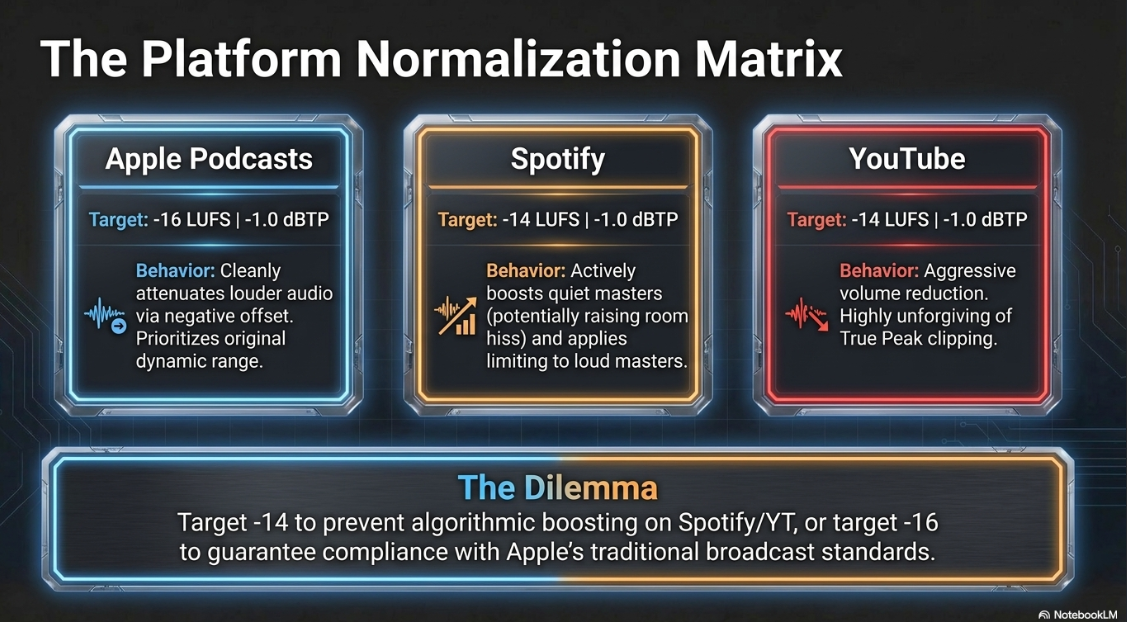
The podcasting industry remains slightly bifurcated on a universal target. Apple's strict recommendation of -16 LUFS remains the baseline for traditional RSS-distributed audio14. However, because Spotify and YouTube target -14 LUFS, a master set to -16 LUFS will be digitally boosted by those platforms by 2 dB, potentially altering its character12.
Many professional mastering engineers therefore advise aiming for the louder common denominator of -14 LUFS and -1.0 dBTP to prevent algorithmic boosting on Spotify and YouTube, acknowledging that Apple will cleanly turn the file down by 2 dB without introducing any destructive limiting artifacts12. Alternatively, standardizing on -16 LUFS guarantees compliance with Apple's traditional broadcast standards and preserves maximum dynamic range1.
For mono files, the target is frequently shifted. A mono file is often mastered to -19 LUFS9. This discrepancy relates directly to how standard LUFS meters interpret single-channel audio, a technical nuance that must be actively managed within editing software.
Configuring Audacity for Broadcast-Compliant Production
Audacity is a ubiquitous, open-source digital audio workstation (DAW) utilized heavily in the podcasting sector for its accessibility and robust feature set11. However, to meet the rigorous industry standards detailed above, Audacity requires specific configuration out-of-the-box. This encompasses external library integration, internal DSP settings, and a highly nuanced understanding of its evolving export architecture. While premium software like Hindenburg Journalist Pro or Adobe Audition feature automated "Match Loudness" panels that execute EBU R128 compliance with a single click, Audacity requires a manual, deliberate workflow24.
Preparing the Environment: Integrating the FFmpeg Library
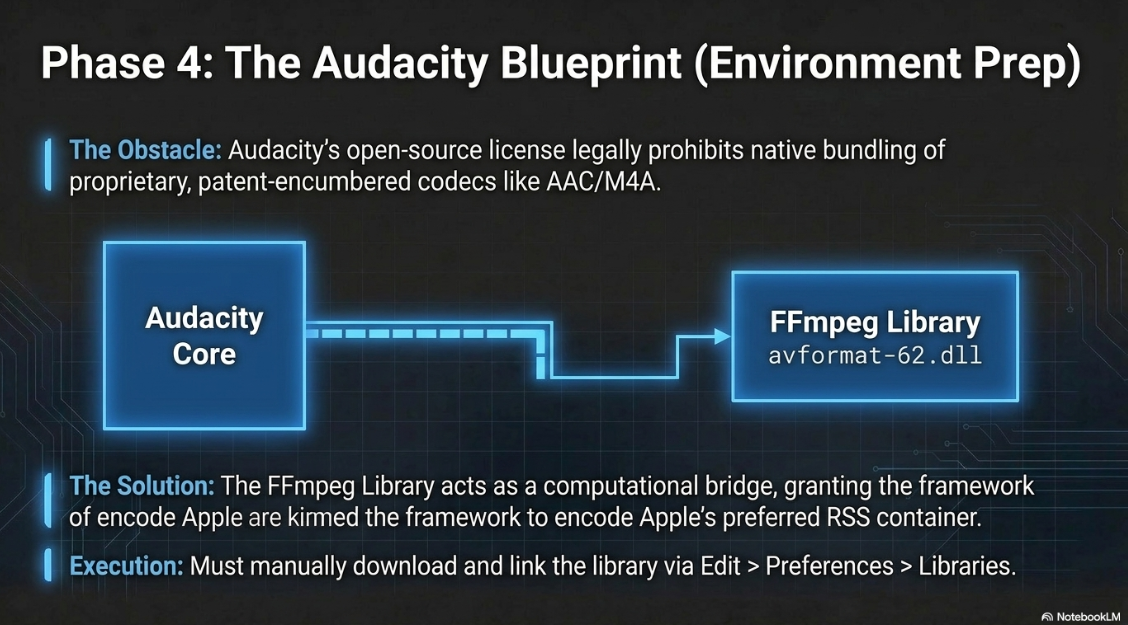
Because Audacity is distributed under open-source licensing, it is legally prohibited from natively bundling proprietary, patent-encumbered codecs such as Advanced Audio Coding (AAC), M4A, or Windows Media Audio (WMA)30. While modern versions of Audacity (3.0 and later) natively include the LAME MP3 encoder, attempting to import or export an AAC/M4A file without secondary modification will result in an immediate error31.
To unlock these highly efficient lossy formats (which are heavily favored by Apple Podcasts), users must manually install the third-party FFmpeg library21. FFmpeg acts as a computational bridge, granting Audacity the framework to decode and encode complex multimedia containers31.
The integration process requires specific attention to software architecture:
Download: Users must download the appropriate FFmpeg installer for their operating system. For Windows, this is typically the FFmpeg v2.2.2 .exe (or a native ARM64 build for Snapdragon devices)30. For macOS, this involves downloading the ffmpeg_64bit_osx.pkg file30. It is critical to match the architecture (32-bit vs. 64-bit) of the installed Audacity version; installing a 64-bit FFmpeg library for a 32-bit Audacity installation will result in a failure to link31.
Installation: The executable should be run while Audacity is fully closed to ensure the system registers the DLLs properly31.
Linking: Upon restarting Audacity, the software typically auto-detects the library30. If automatic detection fails, the user must navigate to Edit > Preferences > Libraries and click "Locate"30. Depending on the specific Audacity version (ranging from 3.1 to 3.7), the software will seek a specific dynamic link library file. For older versions, it seeks avformat-55.dll. For Audacity 3.7 and later, it requires avformat-62.dll (or the equivalent .dylib on macOS / .so on Linux)30.
Once successfully linked, Audacity can natively export to the highly efficient AAC format recommended for Apple RSS feeds, and can even extract audio directly from MP4 video files by simply dragging the video onto the timeline1.
Mastering for Loudness: Normalization and Dynamics in Audacity
Achieving the -16 LUFS (or -14 LUFS) target within Audacity requires the precise application of its built-in Digital Signal Processing (DSP) tools. The mastering process must be executed exclusively after all editing, noise reduction, and equalization steps are completed7.
It is vital to distinguish between Audacity's two primary amplitude processors:
Normalize: This effect relies strictly on Peak Normalization. It scans the selected audio for the absolute highest single sample and mathematically scales the entire file until that specific sample hits a user-defined dBFS target35. This effect is entirely blind to human perception; it does not account for continuous acoustic energy and cannot be used to achieve EBU R128 LUFS compliance24.
Loudness Normalization: This effect utilizes the actual EBU R128 algorithm to calculate perceived Integrated Loudness26. It applies global gain or attenuation until the mathematical average of the file hits the defined LUFS target26.
The Normalization Workflow
To master the podcast audio, the producer must select the entire track (Ctrl/Cmd + A) and navigate to Effect > Volume and Compression > Loudness Normalization10. The parameters must be configured as follows:
Normalize: Set to Perceived Loudness10.
Target LUFS: Enter the desired platform target (e.g., -16.0 LUFS for stereo, or -14.0 LUFS depending on the distribution strategy)10.
Normalize stereo channels independently: This must be Disabled (Unticked)10. Ticking this box would analyze and alter the left and right channels separately, which would completely destroy any deliberate stereo image or panning applied to the mix, resulting in a skewed balance26.
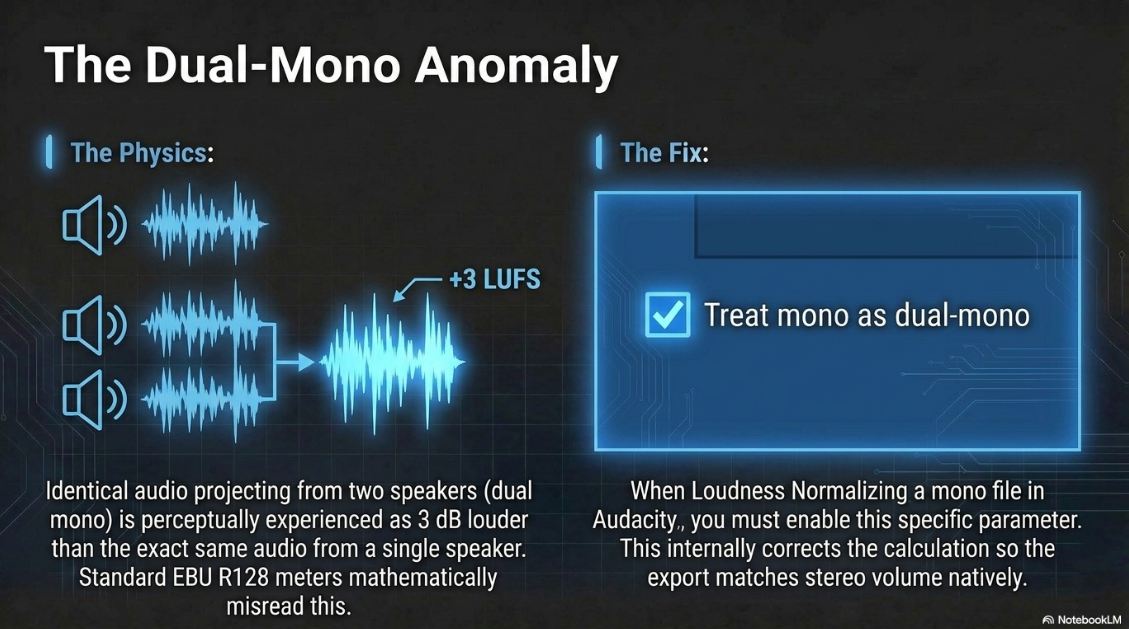
Treat mono as dual-mono: This parameter is of paramount importance and must be Enabled (Ticked) for mono files10.
The "Treat mono as dual-mono" setting addresses a specific quirk in auditory physics and the EBU R128 specification26. When a listener hears identical audio projecting from two speakers (dual mono), it is perceptually experienced as 3 dB louder than the exact same audio projecting from a single speaker26. Consequently, standard EBU R128 meters read two-channel dual-mono tracks 3 LUFS higher than a single-channel mono file, even if they sound identical. Ticking this box in Audacity internally doubles the amplitude calculation, ensuring that a mono podcast export will sound perceptually identical in volume to a stereo export across all platforms without being artificially penalized26.
Peak Limiting and Compression
Because Loudness Normalization only shifts the average volume, it does not constrain individual peaks26. If a podcast with extreme dynamic variation (e.g., quiet whispering followed by sudden explosive laughter) is raised to -16 LUFS, the loud laughter will almost certainly breach the 0.0 dBFS threshold, causing catastrophic clipping.
To mitigate this, producers must apply dynamic control via a Compressor and a Limiter14.
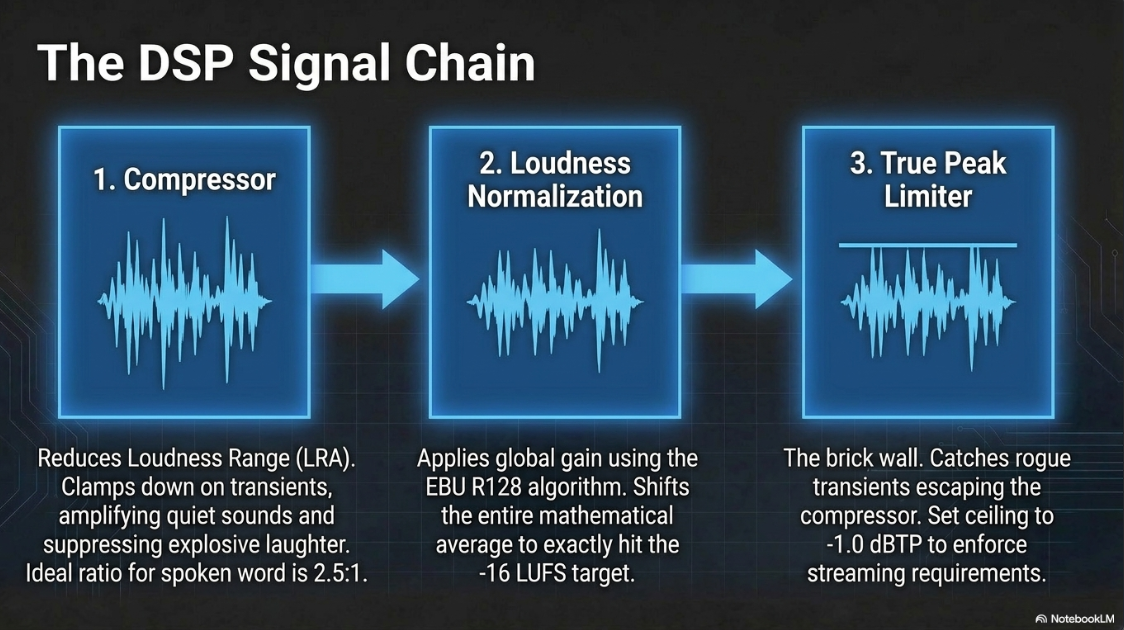
Compressor: Reduces the overall dynamic range (Loudness Range or LRA) by clamping down on audio that breaches a specific threshold (e.g., -12 dB). This amplifies quiet sounds and suppresses loud sounds, resulting in a flatter, more consistent waveform14. A ratio of 2.5:1 to 3:1 is typically ideal for spoken word36.
Limiter: Acting as a "brick wall," a limiter is applied to catch any rogue transients that escape the compressor. The limiter must be set with a hard limit (ceiling) of -1.0 dB to satisfy the True Peak requirements of streaming platforms and prevent inter-sample clipping during the subsequent lossy encode14.
A standard mastering chain in Audacity therefore follows this exact linear progression: Compression (to reduce LRA) -> Loudness Normalization (to achieve -16 LUFS) -> Limiter (to clamp peaks at -1.0 dBTP)14.
The Export Pipeline: Settings and Workarounds in Modern Audacity
Once the audio has been correctly leveled, processed, and checked for adequate room tone at the beginning and end, it must be exported7. Audacity versions 3.4.0 and newer feature a unified, modern export dialog that replaced previous iterative menus, granting direct access to sample rates, bit depths, and advanced channel mapping capabilities in one screen13. The choices made here permanently dictate the audio footprint delivered to the RSS feed.
Configuring the Export Format
The export dialog provides immediate access to the necessary encoding parameters.
Exporting to MP3
If MP3 is selected as the container, Audacity utilizes the internal LAME encoding library6.
Bit Rate Mode: Must be set to Constant (CBR)6. While Variable (VBR) is mathematically superior for complex music, CBR is heavily recommended for podcasts to prevent stuttering, buffering, and time-code errors during internet streaming6.
Quality Presets (Bitrate): Audacity offers developers' presets:
Excessive: 320 kbps CBR. Unnecessary for voice, generating massive files with no perceptible benefit5.
Extreme / Standard / Medium: Various VBR profiles ranging from 128 kbps to 210 kbps6.
For Mono spoken-word podcasts, manually select 64 kbps to 96 kbps CBR1.
For Stereo podcasts (with music or spatial design), select 128 kbps to 192 kbps CBR1. Audacity's default MP3 settings often utilize a 170-210 kbps VBR preset; this must be manually overridden to CBR for podcast compliance6.
Channel Mode: If exporting a voice-centric show, select Mono. Audacity will fold a multi-track stereo session into a single channel, halving the file size while maintaining absolute vocal clarity6. If stereo is required, Audacity utilizes "Joint Stereo," an algorithm that intelligently combines common frequency information between the left and right channels to maximize data efficiency without compromising the stereo field6.
Note: Audacity will only export tracks that are actively playing. Any tracks greyed out by the "Mute" button, or sidelined by the "Solo" button on a different track, will be excluded from the final render6.
Exporting to AAC
If the user has installed FFmpeg, selecting M4A (AAC) Files (FFmpeg) yields a highly efficient file for Apple Podcasts1.
Quality: 192 kbps AAC is widely considered the technical "sweet spot" for pristine fidelity at a highly manageable file size5.
Audacity Anomaly Warning: Audacity has a documented bug regarding AAC bitrates. Specifically, when selecting stereo bitrates of 196 kbps or lower, the software often overrides the user's choice and exports uniformly at 196-198 kbps, regardless of the inputted number21. Bitrates specified between 200 kbps and 320 kbps behave more accurately21. Due to these internal inaccuracies, some audio engineers recommend exporting an uncompressed WAV file from Audacity and executing the final AAC conversion inside Apple Music or iTunes, granting the producer absolute, bug-free control over the encoding algorithm21.
Metadata and the "Export Multiple" Regression
Proper ID3 metadata tagging (Artist Name, Album Title, Track Name, Year, Genre) is critical for podcast discoverability, allowing media players to display episode artwork and titles correctly11.
However, users operating Audacity versions 3.4.x through 3.6.x must navigate a severe, documented regression bug related to the Export Multiple function39. The "Export Multiple" command is an invaluable workflow tool utilized by podcast editors to split a long, continuous recording into multiple distinct episodes based on label tracks, or to export multiple discrete stems simultaneously13.
The Metadata Bug Workflow Disruption
Under normal legacy conditions (Audacity 3.3.3 and earlier), filling out the Metadata Tags prior to an "Export Multiple" command propagates the global data (e.g., Artist Name, Podcast Name, Year) to every single resulting file, while dynamically updating the Track Title based on the individual label text39.
In Audacity 3.4.x and above, the newly redesigned, unified export dialog breaks this functionality. If a user clicks the "Edit Metadata" button within the export dialog, populates the fields, and executes the multiple export, only the very first file receives the metadata39. The second, third, and all subsequent files are entirely stripped of their metadata tags, retaining only a raw numerical track number and title39.
Mitigation Strategies
Until this bug is rectified by the developers, producers must utilize specific workarounds:
Avoid the Export Dialog Metadata Button: Do not touch the metadata button located within the new File > Export Audio screen under any circumstances when exporting multiple files39.
Global Metadata Editor: Instead, navigate via the top menu to Edit > Metadata Editor before attempting to export39.
Set Defaults: Fill out the relevant fields (Podcast Title, Author) and click the Set Default button, then click OK39.
Execute Export: Proceed to File > Export Audio, select the "Multiple Files" target range, and click export without interacting with any metadata menus on that specific screen39. This bypass allows the globally saved defaults to embed into every file in the batch39.
Furthermore, the transition to Audacity 3.4 initially removed the beloved "Export Selected Audio" shortcut, forcing users to navigate the full dialog box even for quick segment renders. Due to community backlash, Audacity developers reinstated this as a Macro feature, and as of Audacity 3.6.1, "Export Selected Audio" was returned to the Extra > Export submenu, allowing power users to once again map direct keyboard shortcuts for rapid iteration38.
Conclusion
The execution of professional podcast audio is a precise intersection of art and empirical science. A compelling narrative or interview can be easily undermined by technical incompetence—be it digital clipping from inter-sample peaks, excessive bandwidth requirements from uncompressed files, or severe listener fatigue induced by volume discrepancies.
To achieve standard broadcast quality, audio producers must capture source material at high resolutions (44.1 kHz / 24-bit for audio, 48 kHz / 24-bit for video) to preserve dynamic range and noise floor integrity. During post-production within Audacity, careful application of EBU R128 Loudness Normalization ensures the final output hits the universally acceptable -16 LUFS to -14 LUFS range. Crucially, this must be paired with True Peak limiting to prevent the inter-sample distortion inherently introduced by lossy encoding formats.
Finally, the decision between exporting to MP3, AAC, or WAV dictates the final delivery mechanism. Uncompressed WAVs belong securely in archival storage, while Constant Bit Rate (CBR) MP3 and AAC files serve as the optimized delivery vehicles for global RSS syndication. By mastering these acoustic standards, psychoacoustic compression formats, and digital software workflows, podcast producers ensure their content is consumed exactly as intended, across all platforms, flawlessly.
Works cited
Audio requirements - Apple Podcasts for Creators, https://podcasters.apple.com/support/893-audio-requirements
Best Audio Formats for Recording, Mastering & Distribution - MasteringBOX, https://www.masteringbox.com/learn/audio-formats
Audio Output Formats: Choosing the Right File Type and Quality - Journalism University, https://journalism.university/audio-podcast/audio-output-formats-file-type-quality/
Why Your Podcast Sounds Amateur (5 Audio Specs Explained), https://www.podcaststudioglasgow.com/podcast-studio-glasgow-blog/the-5-audio-specs-that-separate-professional-from-amateur-podcasts
Screen Recording and Podcast Audio — These 4 Numbers Make You Sound PRO - Medium, https://medium.com/@andrew_best/screen-recording-and-podcast-audio-these-4-numbers-make-you-sound-pro-7e0f8d95c407
MP3 Export Options - Audacity Manual, https://manual.audacityteam.org/man/mp3_export_options.html
Audacity How to Save as MP3 - Swell AI, https://www.swellai.com/blog/audacity-how-to-save-as-mp3
Audio Quality Guidelines for podcast episodes - Support - RSS.com, https://help.rss.com/en/support/solutions/articles/44002371360-audio-quality-guidelines-for-podcast-episodes
Question regarding Audacity Exporting & Settings, as well as Post-Production Support Pricing? : r/podcasting - Reddit, https://www.reddit.com/r/podcasting/comments/16ybx45/question_regarding_audacity_exporting_settings_as/
How to Optimize Loudness & File Format in Your Audacity Podcast - Music Radio Creative, https://producer.musicradiocreative.com/audacity-podcast-top-tips/
How to Export an Audacity File (Multiple Formats & Options) | Envato Tuts+ - Music & Audio, https://music.tutsplus.com/how-to-export-from-audacity-multiple-formats-options--cms-108593a
Mastering for Streaming — LUFS Targets for Spotify & Apple Music, https://veniamastering.studio/blog/technical-mastering-guide-for-spotify-and-streaming/
Overview of Audio Editing with Audacity | PDF - Scribd, https://www.scribd.com/document/781078056/class-12-it-ch3
Podcast Loudness Standards 2026: Spotify, Apple, YouTube Requirements, https://sone.app/blog/podcast-loudness-standards-2026-spotify-apple-youtube
Audio Formats 101: How to Choose the Right One - Riverside, https://riverside.com/blog/audio-formats
Beginner's Guide To Audio File Types (And Which To Use) - Sonos, https://www.sonos.com/en/blog/audio-file-types
What's the Best Audio File Format for Podcasts? Full Guide - Async, https://async.com/blog/audio-formats-for-podcasts/
The Best Audio File Formats for Your Podcast - Acast, https://www.acast.com/en-gb/blog/best-audio-file-formats-for-podcasts
The Definitive Guide to Audio Formats for Podcasts - Podbean Blog, https://blog.podbean.com/the-definitive-guide-to-audio-formats-for-podcasts/
AAC Export Options - Audacity Manual, https://manual.audacityteam.org/man/aac_export_options.html
Audio - Podcast de facto Standard, https://podcast-standard.org/audio/
MP4 vs MP3: The Real Deal for Your Metal Mixes, https://www.nailthemix.com/mp4-vs-mp3
HOW LOUD SHOULD YOUR PODCAST BE? LUFS AND DB EXPLAINED, https://content.sport-social.co.uk/blog/how-loud-should-your-podcast-be
Mastering Loudness Targets for Streaming: Spotify, Tidal, Apple Music, and Bandcamp - Mat Leffler-Schulman, https://matlefflerschulman.com/mastering-articles/loudness-targets-and-mastering-for-streaming-platforms
Loudness Normalization - Audacity Manual, https://manual.audacityteam.org/man/loudness_normalization.html
More Pro Tools Mastering Tips, https://www.soundonsound.com/techniques/more-pro-tools-mastering-tips
Audio Specs and Standards - Megaphone Help Center, https://support.megaphone.fm/en/articles/1561164-audio-specs-and-standards
Tag Archive | audacity - UbuntuHandbook, https://ubuntuhandbook.org/index.php/tag/audacity/
Installing FFmpeg | Audacity Support, https://support.audacityteam.org/basics/installing-ffmpeg
How to Install the FFmpeg Library for Audacity (Windows & Mac Guide) - Hollyland, https://www.hollyland.com/blog/topics/install-the-ffmpeg-library-for-audacity
Audacity 01 - FFMPEG Library - Learn - University of Toronto, https://learn.digital.utsc.utoronto.ca/audacity-01-ffmpeg-library
FFmpeg Library – Open Source for Digital Communication & Learning Objects - Saskoer, https://www.saskoer.ca/osdigcomm/chapter/ffmpeg-library-issue/
Audacity: How to import or export in other file formats - TeamDynamix, https://rollins.teamdynamix.com/TDClient/1835/Portal/KB/Article/147451/Audacity-How-to-import-or-export-in-other-file-formats
Loudness Normalization | Audacity Support, https://support.audacityteam.org/audio-editing/loudness-normalization
Audacity Basic Editing Recommended Order - 표현하다, https://phconlab.com/en/audacity-basic-editing-2/
I require assistance on improving my voiceover audio quality - Reddit, https://www.reddit.com/r/voiceover/comments/1usn6bk/i_require_assistance_on_improving_my_voiceover/
3.5 Beta and Export Selected Audio - Audacity Forum, https://forum.audacityteam.org/t/3-5-beta-and-export-selected-audio/102850
With new Multiple Files Export dialog user supplied Metadata applies only to the first exported file - and does not propagate to iTunes on import · Issue #5825 - GitHub, https://github.com/audacity/audacity/issues/5825
Problem with mp3tags on multiple export - Audacity 3 Help Forum, https://forum.audacityteam.org/t/problem-with-mp3tags-on-multiple-export/129690
“Show Metadata Tags editor before export” - Audacity 3 Help Forum, https://forum.audacityteam.org/t/show-metadata-tags-editor-before-export/115209